Product: Ginox AI
Getting Started with Ginox AI
Ginox AI is a multi-model AI assistant that lets you chat, generate images, create videos, and search the web from one place. It is built into the Ginox platform and takes just a few minutes to set up.
This guide walks you through signing in, picking your first AI model, and sending your first message. By the end you will know how to navigate the interface, upload files, and manage your credits.
Step 1: Sign In to Ginox
Go to app.ginox.io and sign in to your account. If you already have a Ginox account, enter your username and password on the sign-in page. You can also sign in with Google, Telegram, Discord, or WalletConnect if you prefer. If you are new to Ginox, click "Register now" at the bottom of the sign-in page to create a free account.
Step 2: Open Ginox AI
After signing in, look at the left side of the screen. You will see a sidebar with four sections: My Space, Ginox AI, Gidex Trade, and Gidex Defi. Click "Ginox AI" to open the chat interface. You can also go directly to app.ginox.io/ai in your browser. The main area will show a welcome message that says "Hi, I'm GINOX AI" along with a few suggestion cards to help you get started.
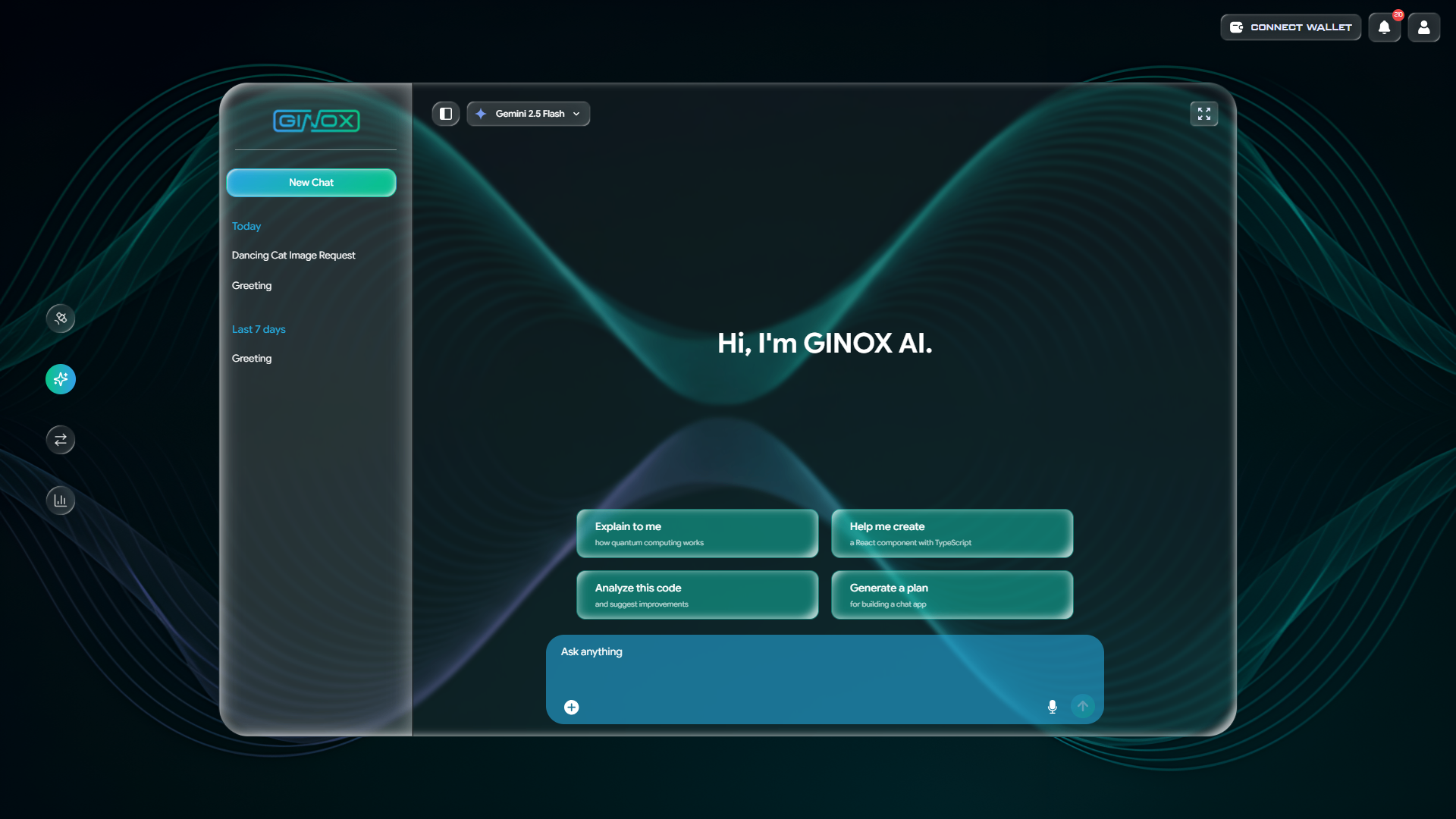
The Ginox AI chat interface with the sidebar, model selector, suggestion cards, and the "Ask anything" input box.
Step 3: Choose an AI Model
At the top of the chat area you will see a model selector dropdown. Click on it to see the full list of available models. Ginox AI offers over 20 models from four providers:
- OpenAI: GPT 5.1, GPT 5 Mini, GPT 5 Nano, GPT 4.1, GPT 4o, and more
- Google: Gemini 3 Pro, Gemini 2.5 Flash, Gemini 2.0 Flash, and more
- xAI: Grok 3, Grok 3 Fast, Grok 3 Mini, and more
- DeepSeek: DeepSeek Chat, DeepSeek Reasoner
If you are not sure which model to pick, Gemini 2.5 Flash is a good starting point. It is fast, capable, and works well for most tasks. You can always switch to a different model later.
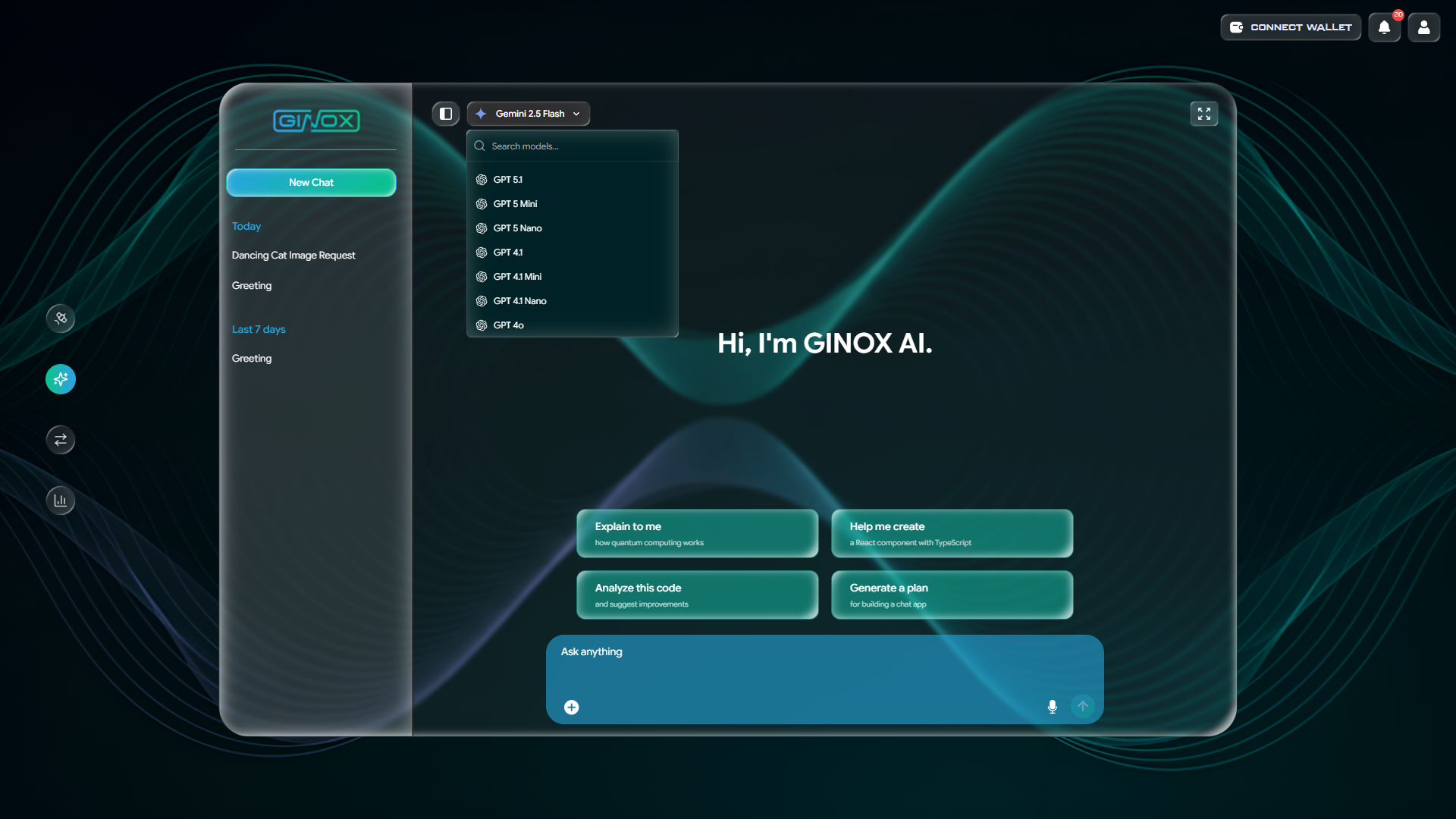
The model selector dropdown showing available AI models with a search bar at the top.
Step 4: Send Your First Message
Click the "Ask anything" box at the bottom of the screen and type your question or instruction. Press Enter or click the send button to submit it. The AI will start responding right away. You can also click one of the suggestion cards on the welcome screen to send a pre-written prompt.
Once the AI replies, you can continue the conversation by typing follow-up questions in the same chat. Each response includes action buttons below it: copy the text, listen to it read aloud, give a thumbs up or thumbs down, or regenerate the response if you want a different answer.
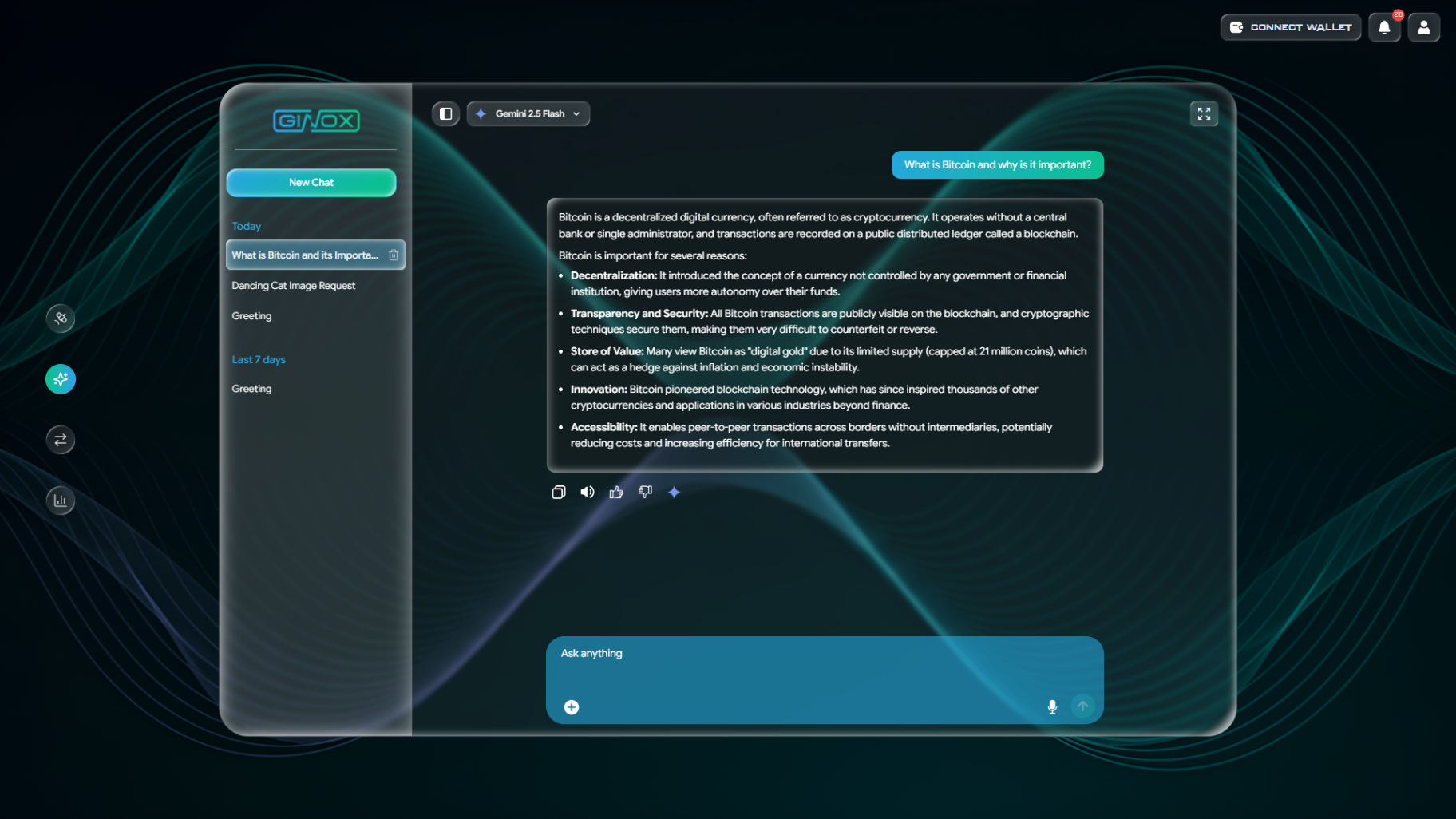
A conversation in Ginox AI showing a user question about Bitcoin and the AI response with action buttons.
Step 5: Upload a File (Optional)
You can attach files to your chat for the AI to read and analyze. Click the "+" button on the left side of the input box to open the file picker. Ginox AI supports several file types:
- Images: PNG, JPG, WebP, and other common image formats
- Documents: PDF, Word (.docx), plain text (.txt), Markdown (.md)
- Data: JSON files
After uploading a file, type your question about it. For example, you could upload a PDF and ask the AI to summarize it, or upload an image and ask it to describe what it sees.
Step 6: Buy Credits
Every action in Ginox AI (sending messages, generating images, creating videos, running web searches) costs credits. The amount depends on the model and feature you use. To buy credits, click the pricing icon in the sidebar or go to app.ginox.io/ai/pricing. Three packages are available:
- Starter: $10 for 1,000 credits
- Professional: $45 for 4,500 credits
- Enterprise: $120 for 12,000 credits
Click "Buy Now" on the package you want, then complete the payment in USDT. Your credits will be added to your account immediately. You can check your balance at any time from the AI Dashboard in My Space.
Frequently Asked Questions
Do I need credits to start using Ginox AI?
Yes. Ginox AI runs on a credit system. You need to purchase a credit package before you can send messages, generate images, or create videos. Visit the Pricing page to choose a package that fits your needs.
Which model should I pick?
If you are new to AI, start with Gemini 2.5 Flash. It is fast and handles most tasks well. For more complex reasoning or coding tasks, try GPT 5.1 or Gemini 3 Pro Preview. For quick simple questions, lighter models like GPT 4o Mini or Gemini 2.0 Flash-Lite use fewer credits.
Can I switch models in the middle of a conversation?
Yes. Click the model dropdown at the top and select a different model. A dialog will appear warning you that switching models requires rebuilding context, which uses more credits than continuing with the same model. Click "Switch" to confirm or "Cancel" to stay on the current model.
What file types can I upload?
You can upload images (PNG, JPG, WebP), PDF documents, Word files (.docx), plain text (.txt), Markdown (.md), and JSON files. Click the "+" button next to the input box to attach a file.
Where is my chat history?
All your conversations are saved in the sidebar on the left side of the screen. They are grouped by date (Today, Last 7 days, and so on). Click any conversation title to reopen it. You can also delete a conversation by clicking the trash icon next to its name.