Product: Ginox AI
Ginox AI Credits and Pricing
Ginox AI runs on a credit-based system. Every action you take on the platform costs credits: sending chat messages, generating images, creating videos, and running web searches. The number of credits used depends on the model you choose and the type of task you perform.
This article explains how credits work, what different features cost, how to purchase credits, and how to track your spending.
What Are Ginox Credits?
Credits are the currency that powers Ginox AI. When you send a message, the AI model processes your input and generates a response. That processing costs credits. The same applies to image generation, video creation, and web searches. Your credit balance is displayed in the AI Dashboard and decreases as you use the platform.
What Costs Credits?
Chat Messages
The cost of a chat message depends on two things: the model you are using and the length of the conversation. Larger, more capable models cost more per message than smaller ones. As your conversation gets longer, each new message also costs slightly more because the AI needs to process all the previous messages for context. Staying on the same model throughout a conversation is cheaper than switching mid-chat, because the platform caches your conversation context.
- Budget models (GPT 5 Nano, Gemini 2.0 Flash-Lite): The most affordable option. Great for simple questions and quick tasks.
- Mid-range models (GPT 5 Mini, Gemini 2.5 Flash): Good balance of quality and cost. Suitable for most everyday tasks.
- Premium models (GPT 5.1, Gemini 3 Pro, GPT 4.1): Best for complex reasoning, coding, and detailed analysis. Use more credits per message.
Image Generation
Generating an image costs between 2 and 31 credits depending on the engine, image size, and quality level. Smaller images at lower quality settings are the cheapest. Higher resolutions and quality levels use more credits.
Video Generation
Video generation is the most credit-intensive feature. Costs range from about 18 credits for a short low-resolution clip to over 200 credits for a longer high-resolution video. The two main factors are resolution (540p to 4K) and duration (5 to 9 seconds). Luma Ray Flash 2 and Sora 2 have slightly different pricing, with costs increasing at higher resolutions and longer durations.
Web Search
Web search is the cheapest feature on the platform. Each search query costs a fraction of a credit. The AI triggers web searches automatically when your question requires current information, so you do not need to worry about accidentally overspending on searches.
Credit Packages
You can purchase credits in three packages. All payments are made in USDT (a stablecoin pegged to the US dollar).
- Starter Package: $10 for 1,000 credits. Good for trying the platform and light usage.
- Professional Package: $45 for 4,500 credits. Best value for regular users who chat and generate content frequently.
- Enterprise Package: $120 for 12,000 credits. Designed for heavy users and teams that need a large credit balance.
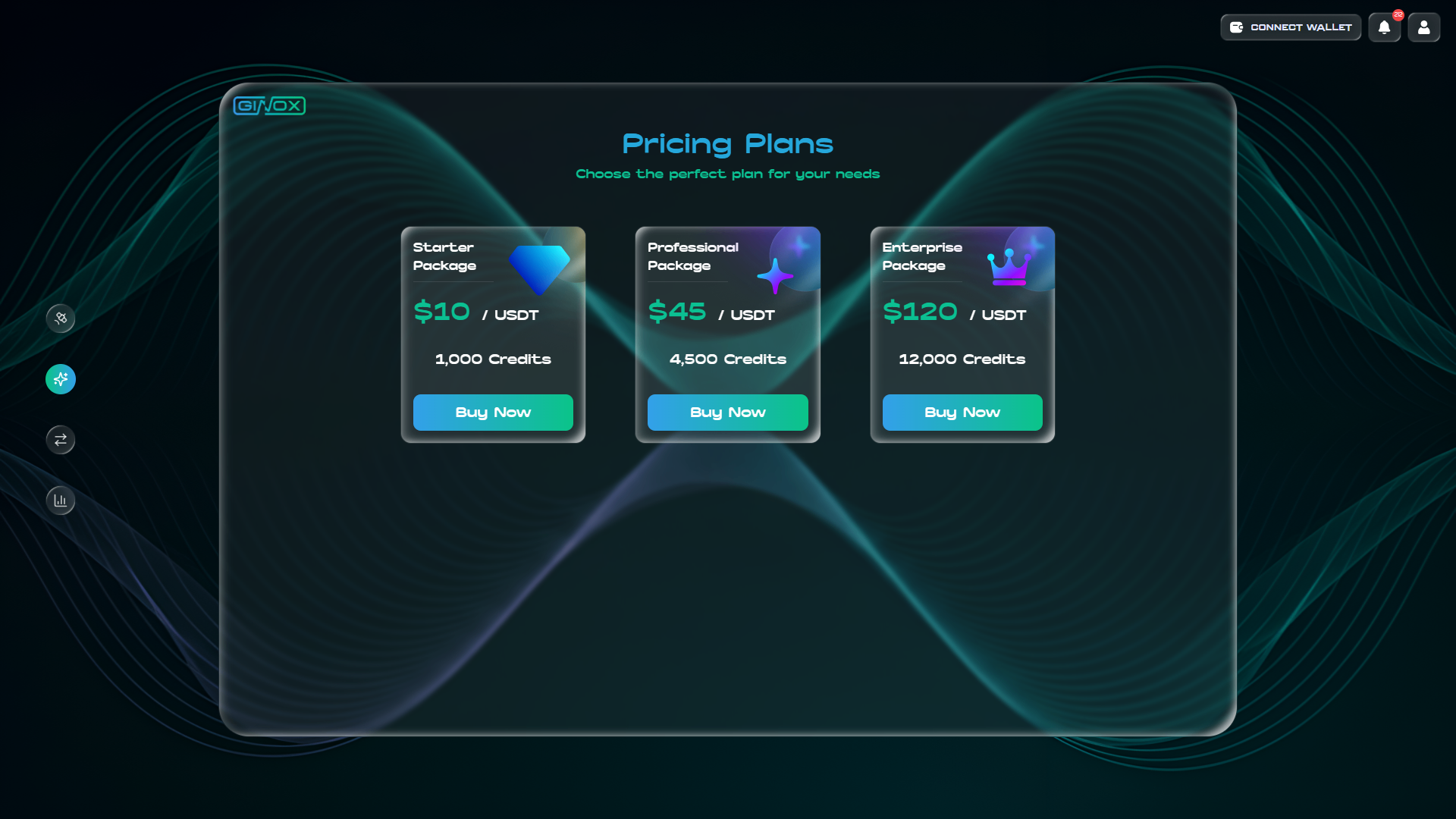
The Ginox AI Pricing Plans page showing Starter, Professional, and Enterprise credit packages.
How to Buy Credits
1. Go to app.ginox.io/ai/pricing or click the pricing icon in the Ginox AI sidebar.
2. Choose the package that fits your needs and click "Buy Now".
3. Select your preferred blockchain network for the payment. Ginox supports USDT on seven networks: Ethereum, Arbitrum, Optimism, Polygon, BASE, BNB Chain, and Avalanche.
4. Confirm the transaction in your wallet. Once the payment is confirmed on chain, your credits will be added to your account immediately.
You can also reach the pricing page from the AI Dashboard by clicking the "Buy Credits" button next to your credit balance.
Track Your Usage
The AI Dashboard gives you a complete overview of your spending and activity. To open it, go to My Space and click "AI Dashboard" in the navigation bar. The dashboard shows four summary cards at the top: Total AI Tasks, Credits Spent, Most Used Type, and Last Activity. Below that you will find your current credit balance with quick links to the Ginox Credits page and the Buy Credits flow.
The Usage History table at the bottom of the dashboard logs every action you have taken. You can filter it by date range, task type (Chat, Search, Image, Video), and AI model. Each entry shows the date, task type, model used, credits spent, and status.
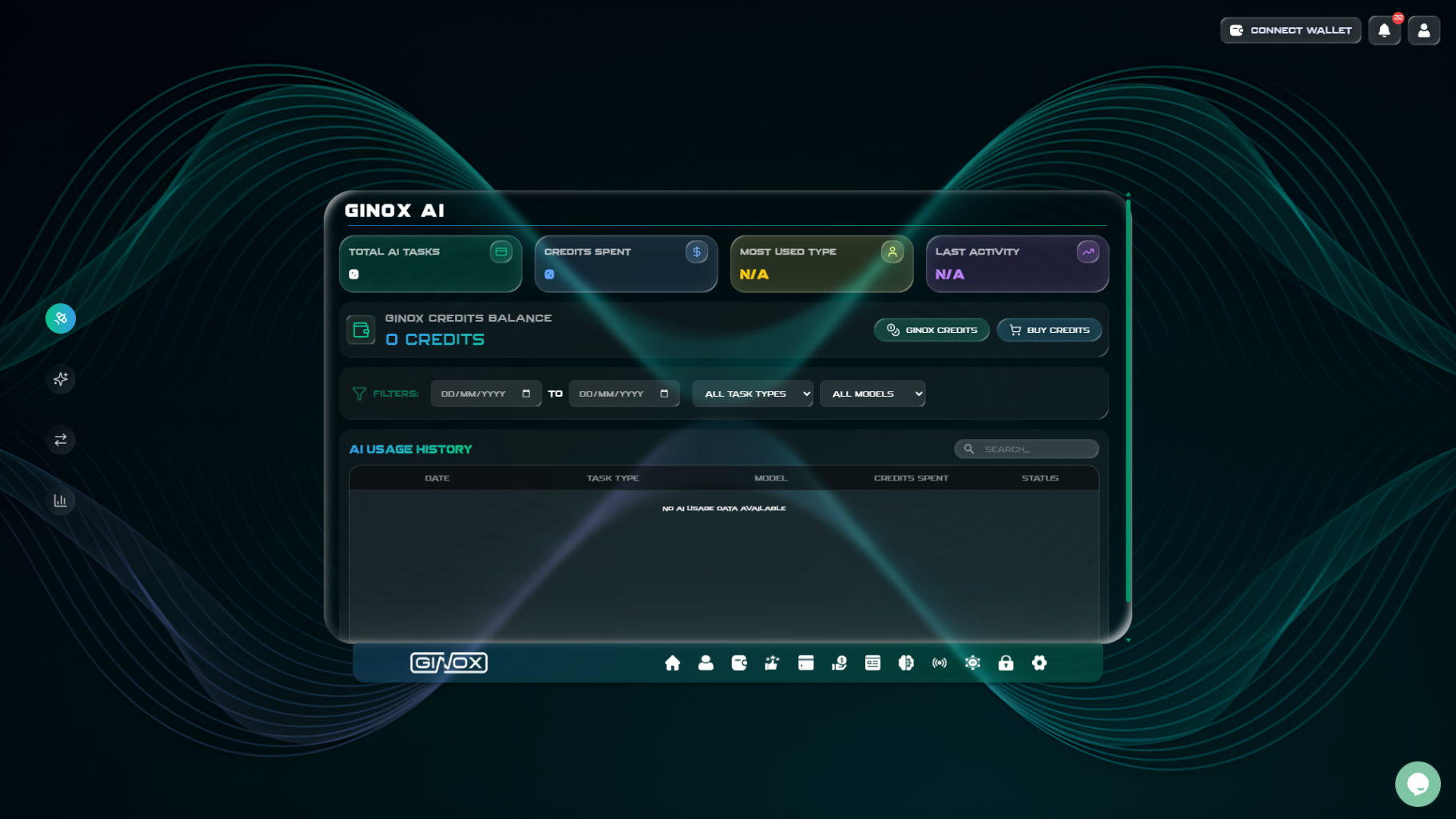
The Ginox AI Dashboard showing usage statistics, credit balance, filters, and the AI Usage History table.
Frequently Asked Questions
Which actions cost the most credits?
Video generation is the most expensive feature, especially at higher resolutions and longer durations. Premium chat models like GPT 5.1 and GPT 4.1 also use more credits per message than lighter models. Web search is the cheapest action on the platform.
Can I see exactly how many credits each message costs?
Yes. The AI Dashboard in My Space logs every action with the exact number of credits spent. You can filter by task type and model to see a breakdown of your spending.
What happens when I run out of credits?
When your credit balance reaches zero, you will not be able to send messages, generate images, or create videos until you purchase more credits. Visit the Pricing page to buy a new package.
Which payment methods are supported?
Ginox AI accepts USDT payments on seven blockchain networks: Ethereum, Arbitrum, Optimism, Polygon, BASE, BNB Chain, and Avalanche. You will need a crypto wallet with USDT on one of these networks to complete the purchase.
How can I save credits?
Use lighter models like GPT 5 Nano or Gemini 2.0 Flash-Lite for simple questions. Avoid switching models mid-conversation, since that requires rebuilding context and uses extra credits. For image and video generation, start with lower quality settings and only upgrade if you need higher resolution output.