Product: Ginox AI
How to Generate Images with Ginox AI
Ginox AI can create images from text descriptions. You type what you want to see, and the AI generates it for you directly inside the chat. The platform supports multiple image generation engines including GPT Image 1 from OpenAI and Google Gemini models, each with different quality levels and styles.
This guide shows you how to generate your first image, write better prompts, and get the most out of the image tools.
Step 1: Select the Image Tool
Open Ginox AI at app.ginox.io/ai and start a new chat or continue an existing one. Click the "+" button on the left side of the input box at the bottom of the screen. A dropdown menu will appear with five options: Add files, Search, Image, Video, and Memory. Click "Image" to activate image generation mode. A green checkmark will appear next to it to confirm it is active.
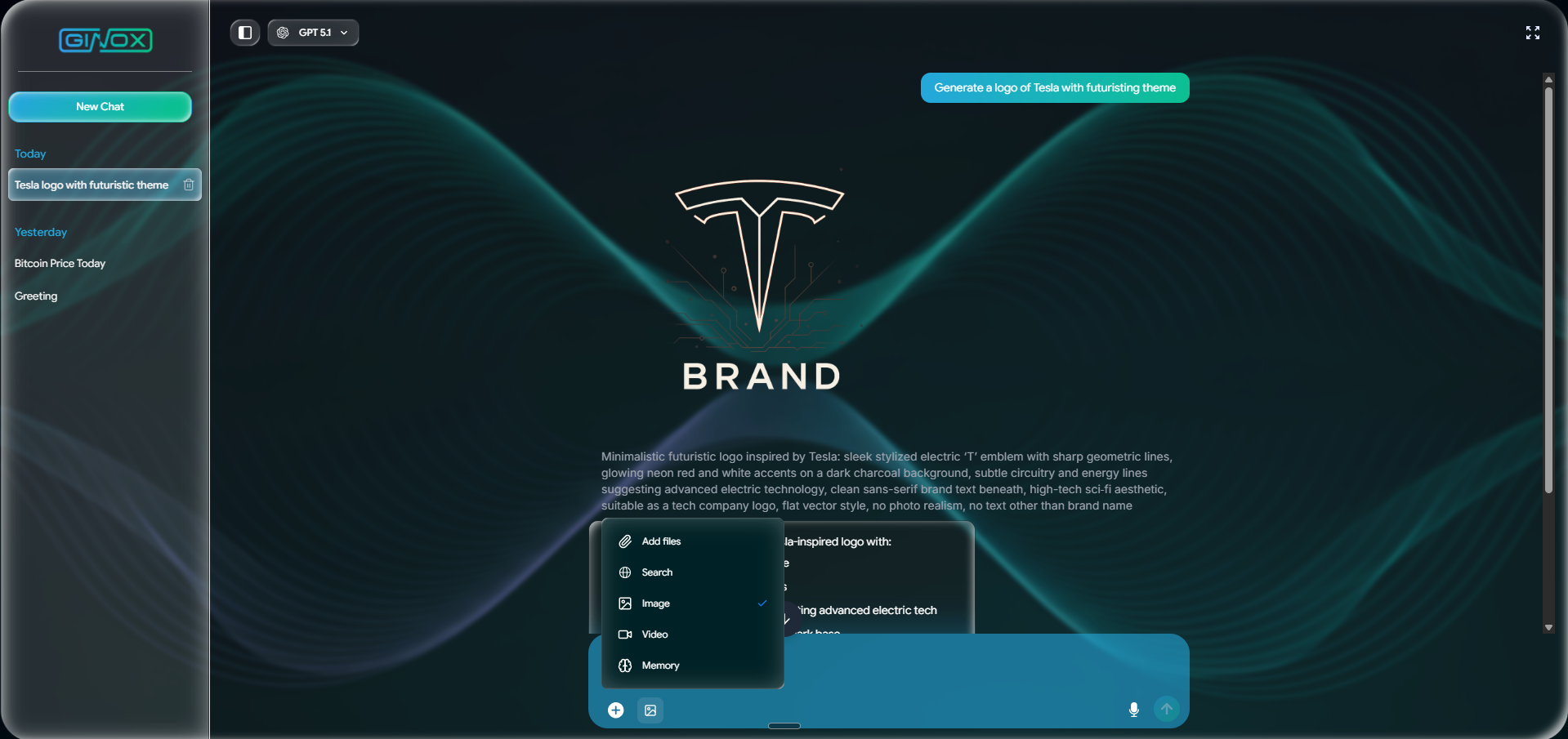
The tools dropdown showing Add files, Search, Image, Video, and Memory options. Image is selected with a green checkmark.
Step 2: Write Your Prompt
With the Image tool selected, type a description of the image you want in the "Ask anything" box. The more specific you are, the better the result will be. Include details about the subject, style, colors, composition, and mood. For example, instead of "a cat", try "a fluffy orange cat sitting on a windowsill at sunset, watercolor style, warm tones". Press Enter to send your prompt.
Step 3: View the Generated Image
The AI will process your prompt and generate the image. This usually takes a few seconds. The image will appear directly in the chat, displayed at full width. Below the image you will see the detailed prompt that the AI used internally to create it. The AI may also provide a short description of what it generated, explaining the key visual elements.
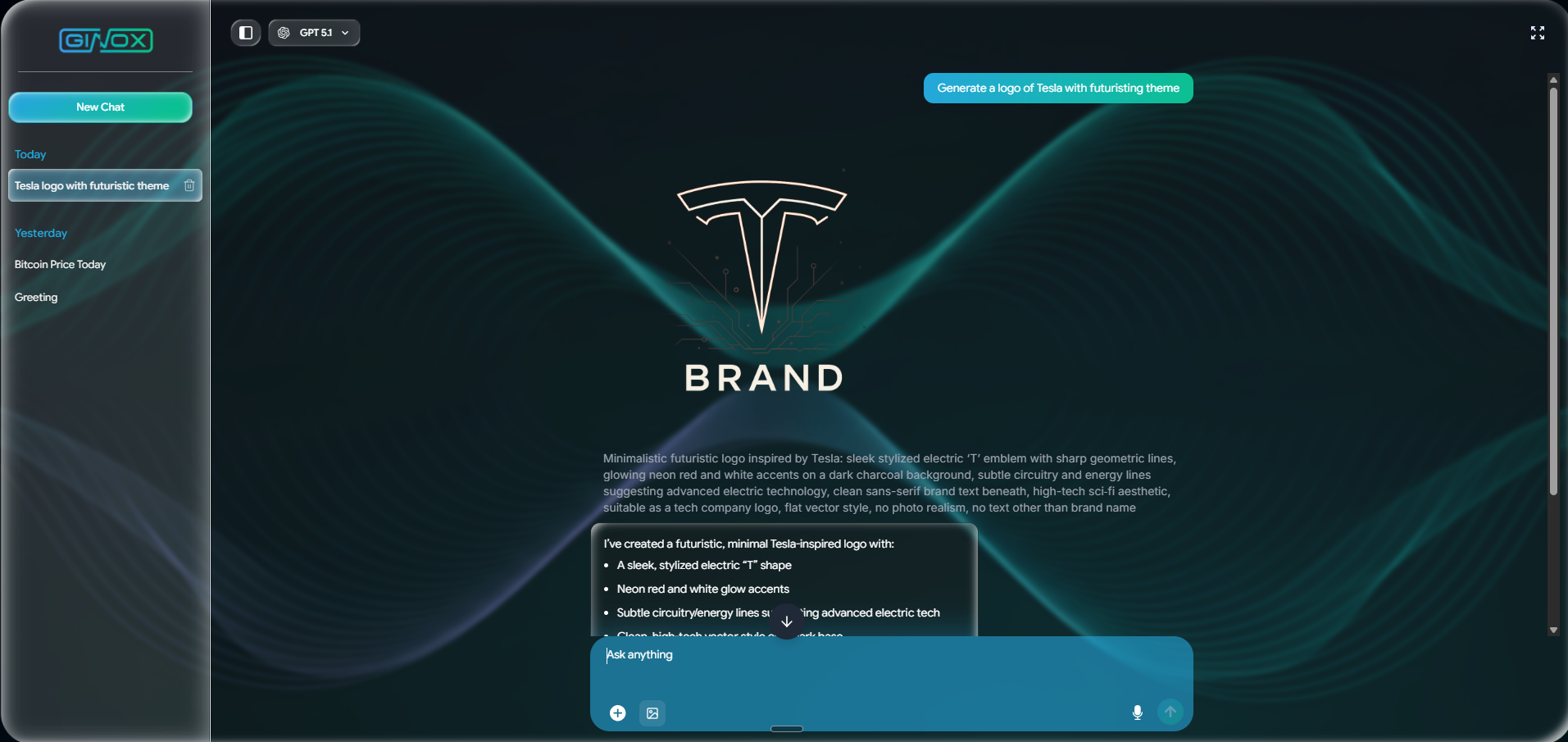
A generated image of a futuristic Tesla-inspired logo, shown inline in the chat with the detailed prompt and description below it.
Step 4: Download or Refine
To save the image, right-click on it and select "Save image as" from the context menu. You can also continue the conversation to refine the result. Ask the AI to make changes like "make the background darker" or "add more detail to the text" and it will generate a new version based on your feedback.
Available Image Engines
Ginox AI uses different engines depending on the chat model you have selected. The main image generation engines are:
- GPT Image 1 (OpenAI): Available when using GPT models. Supports multiple sizes (square, landscape, portrait) and quality levels (low, medium, high). Fast and affordable at lower quality settings.
- Nano Banana (Gemini 2.5): Available when using Gemini 2.5 models. Good balance between quality and speed.
- Nano Banana Pro (Gemini 3): Available when using Gemini 3 models. Highest quality output with more detail and accuracy.
Image generation costs between 2 and 31 credits depending on the engine, size, and quality level. Lower quality and smaller sizes use fewer credits.
Tips for Better Image Prompts
- Be specific about the subject. Instead of "a building", describe "a glass skyscraper with a rooftop garden at dusk".
- Mention the style you want. Words like "watercolor", "flat vector", "photorealistic", "oil painting", or "3D render" make a big difference.
- Describe lighting and colors. Phrases like "warm golden light", "neon glow on a dark background", or "soft pastel tones" help set the mood.
- Specify what you do not want. If the result includes unwanted text or elements, tell the AI in your follow-up message to remove them.
- Iterate on results. Your first image may not be perfect. Use follow-up messages to refine the style, composition, or details until you are satisfied.
- Try different models. GPT models and Gemini models produce different styles. If one does not give you the look you want, switch to another.
Frequently Asked Questions
Which models can generate images?
Image generation is available with both OpenAI GPT models and Google Gemini models. The specific image engine (GPT Image 1, Nano Banana, or Nano Banana Pro) is selected automatically based on the chat model you are using.
How many credits does image generation cost?
Costs range from about 2 credits for a small low-quality image to around 31 credits for a large high-quality one. The exact cost depends on the engine, image size, and quality setting.
What sizes are available?
The supported sizes are square (1024x1024), landscape (1536x1024), and portrait (1024x1536). The AI selects the size based on your prompt, or you can specify a preference in your message.
Can I generate multiple images at once?
Each prompt generates one image. If you want variations, send follow-up messages describing the changes you want, or rephrase your prompt slightly to get a different result.
Can I use a reference image?
Yes. You can upload an image using the "Add files" option in the tools dropdown, then describe what you want the AI to do with it. For example, you could upload a photo and ask the AI to create a stylized version of it.