Product: Ginox AI
How to Generate Videos with Ginox AI
Ginox AI can create short videos from text descriptions. You describe a scene, and the AI turns it into a video clip with motion, camera angles, and realistic detail. Two video engines are available: Luma Ray Flash 2 for fast generation with good motion quality, and OpenAI Sora 2 for high quality cinematic output.
This guide walks you through generating your first video, choosing the right settings, and getting better results from your prompts.
Step 1: Select the Video Tool
Open Ginox AI at app.ginox.io/ai and start a new chat. Click the "+" button on the left side of the input box at the bottom of the screen. A dropdown menu will appear with five options: Add files, Search, Image, Video, and Memory. Click "Video" to activate video generation mode. A green checkmark will appear next to it, and a video camera icon will show next to the "+" button to confirm the tool is active.
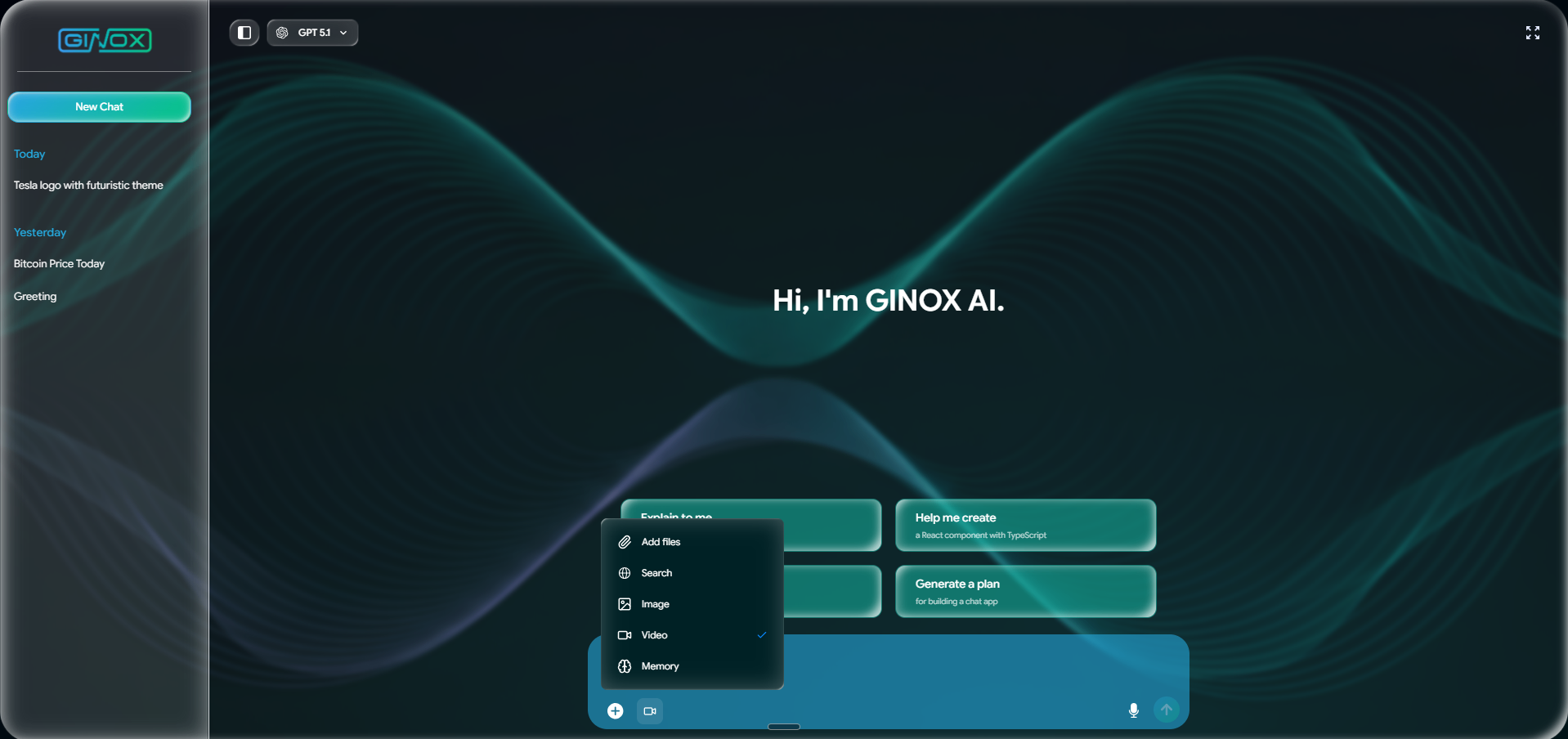
The tools dropdown with Video selected, shown by a green checkmark next to the Video option.
Step 2: Describe Your Video
With the Video tool selected, type a description of the video you want in the "Ask anything" box. Be specific about the scene, movement, camera angles, lighting, and mood. For example, instead of "a car driving", try "a realistic electric car driving along a coastal highway at sunset, with dynamic camera angles and cinematic motion blur". Press Enter to start generating.
Video generation takes longer than image generation, usually between 30 seconds and a few minutes depending on the resolution and duration. The AI will show a loading state while it processes your request.
Step 3: Watch and Download Your Video
Once the video is ready, it will appear directly in the chat with a built-in video player. The player has standard controls: play/pause, a progress bar showing the duration, volume control, fullscreen button, and a menu with additional options. Below the video you will see the detailed prompt the AI used internally, followed by a description of what was generated.
To download the video, click the three-dot menu icon on the right side of the video player and select the download option.
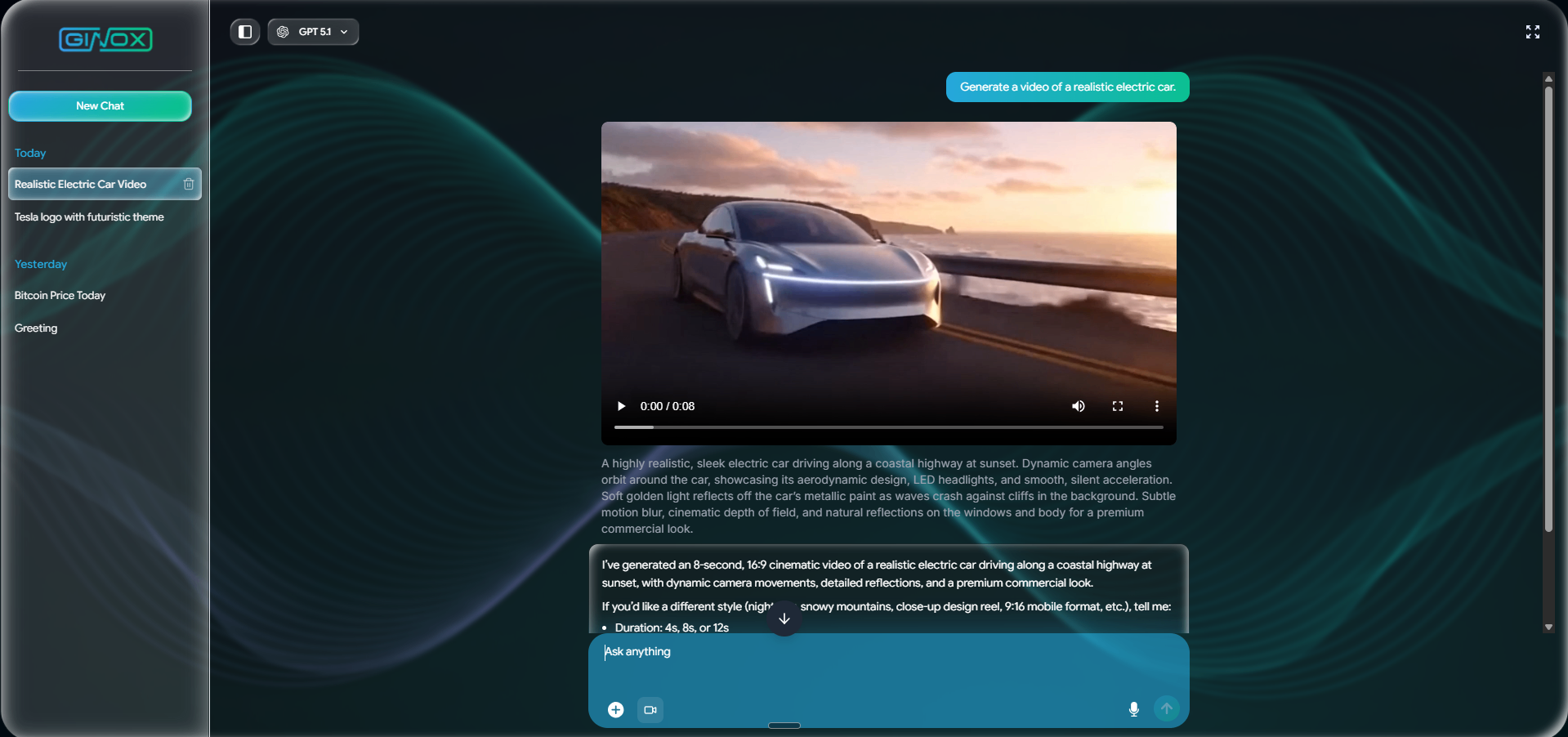
A generated 8-second video of a realistic electric car on a coastal highway, shown in the chat with video player controls and the detailed prompt below.
Step 4: Request Changes
After the video is generated, the AI will suggest options for creating a different version. You can ask for changes like a different style (night scene, snowy mountains), a different format (9:16 vertical for mobile), or a different duration (4, 8, or 12 seconds). Simply type your request in the chat and the AI will generate a new video based on your feedback.
Video Engines and Settings
Ginox AI offers two video generation engines:
- Luma Ray Flash 2: Fast generation with good motion quality. Supports resolutions from 540p to 4K, durations of 5 or 9 seconds, and multiple aspect ratios including 16:9, 9:16, 1:1, and 4:3.
- Sora 2 (OpenAI): High quality cinematic output. Produces videos at 4, 8, or 12 second durations with detailed camera motion and realistic visuals.
Video generation costs vary by resolution and duration. Short clips at lower resolutions cost around 18 credits, while longer high resolution videos can cost over 200 credits. This makes it the most credit-intensive feature on the platform, so start with shorter clips to preview your idea before committing to a full-length high resolution version.
Tips for Better Video Prompts
- Describe motion explicitly. Phrases like "slowly panning left", "camera orbiting around the subject", or "zooming in on the details" help the AI understand what kind of camera work you want.
- Set the scene with environment details. Mention the time of day, weather, location, and atmosphere to give the AI enough context to build a convincing scene.
- Start with shorter durations. A 4 or 5 second clip costs far fewer credits than a 12 second one. Use short clips to test your prompt before generating a longer version.
- Mention the style. Words like "cinematic", "commercial", "documentary", or "aerial drone shot" help define the visual approach.
- Use image-to-video if you have a reference. Upload a still image using the "Add files" tool, then switch to the Video tool and describe how you want the image to come to life.
Frequently Asked Questions
How long does video generation take?
It depends on the engine, resolution, and duration. Shorter low-resolution clips can be ready in under a minute. Longer high-resolution videos may take several minutes. The AI shows a loading state while it processes your request.
How many credits does video generation cost?
Costs range from about 18 credits for a short 540p clip to over 200 credits for a 9-second 4K video. Sora 2 costs roughly 52 credits for 4 seconds and 156 credits for 12 seconds. Start with shorter clips to save credits.
What aspect ratios are supported?
The main options are 16:9 (widescreen), 9:16 (vertical/mobile), 1:1 (square), and 4:3 (standard). You can specify your preference in the prompt or let the AI choose based on your description.
Can I turn an image into a video?
Yes. Upload a still image using the "Add files" option, then select the Video tool and describe how you want the image to be animated. The AI will use your image as a starting frame and generate motion from it.
How long are generated videos stored?
Generated videos are stored on the platform for 30 days. After that, they may be removed. Download any videos you want to keep permanently.