Product: Ginox AI
How to Use Ginox AI Chat
Ginox AI Chat is the core feature of the Ginox AI platform. You can ask questions, get help with writing or coding, analyze uploaded documents, and search the web for current information. The chat supports over 20 AI models from OpenAI, Google, xAI, and DeepSeek, and you can switch between them at any point in a conversation.
This guide covers everything you need to know about using the chat effectively, from starting a conversation to managing your chat history.
Step 1: Start a New Chat
Open Ginox AI by going to app.ginox.io/ai. The main screen shows a welcome message with four suggestion cards. You can click any suggestion card to start a conversation with that prompt, or click "New Chat" in the sidebar to begin with a blank conversation. Each new chat starts a separate conversation thread with its own history.
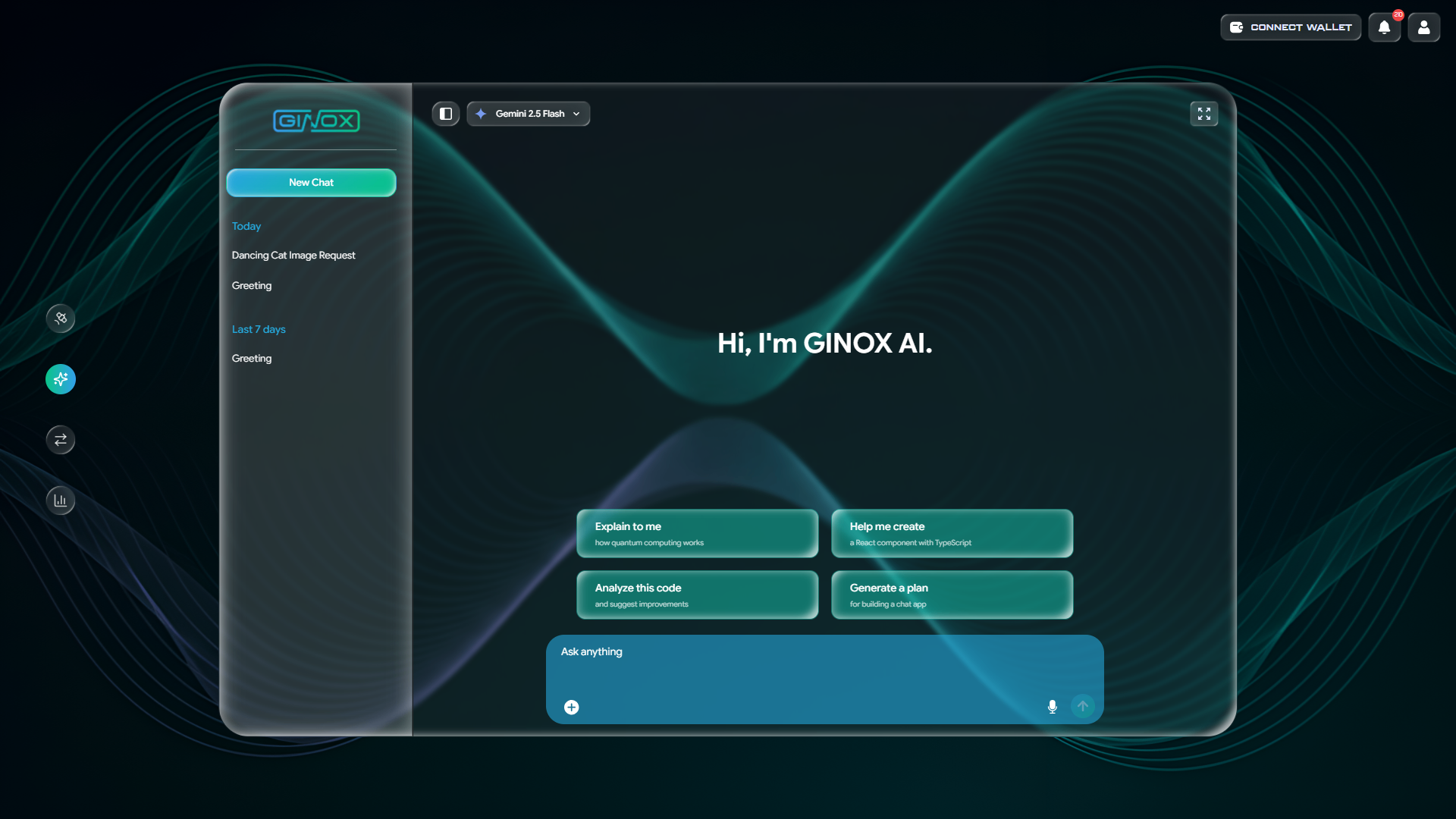
The Ginox AI chat interface showing the welcome screen with suggestion cards and the sidebar.
Step 2: Pick a Model
Before sending a message, choose which AI model you want to use. Click the model dropdown at the top of the chat to see the full list. You can search by name using the search bar inside the dropdown. Different models have different strengths: larger models like GPT 5.1 and Gemini 3 Pro are better for complex tasks but cost more credits, while lighter models like GPT 4o Mini and Gemini 2.0 Flash-Lite are faster and more affordable for simple questions.
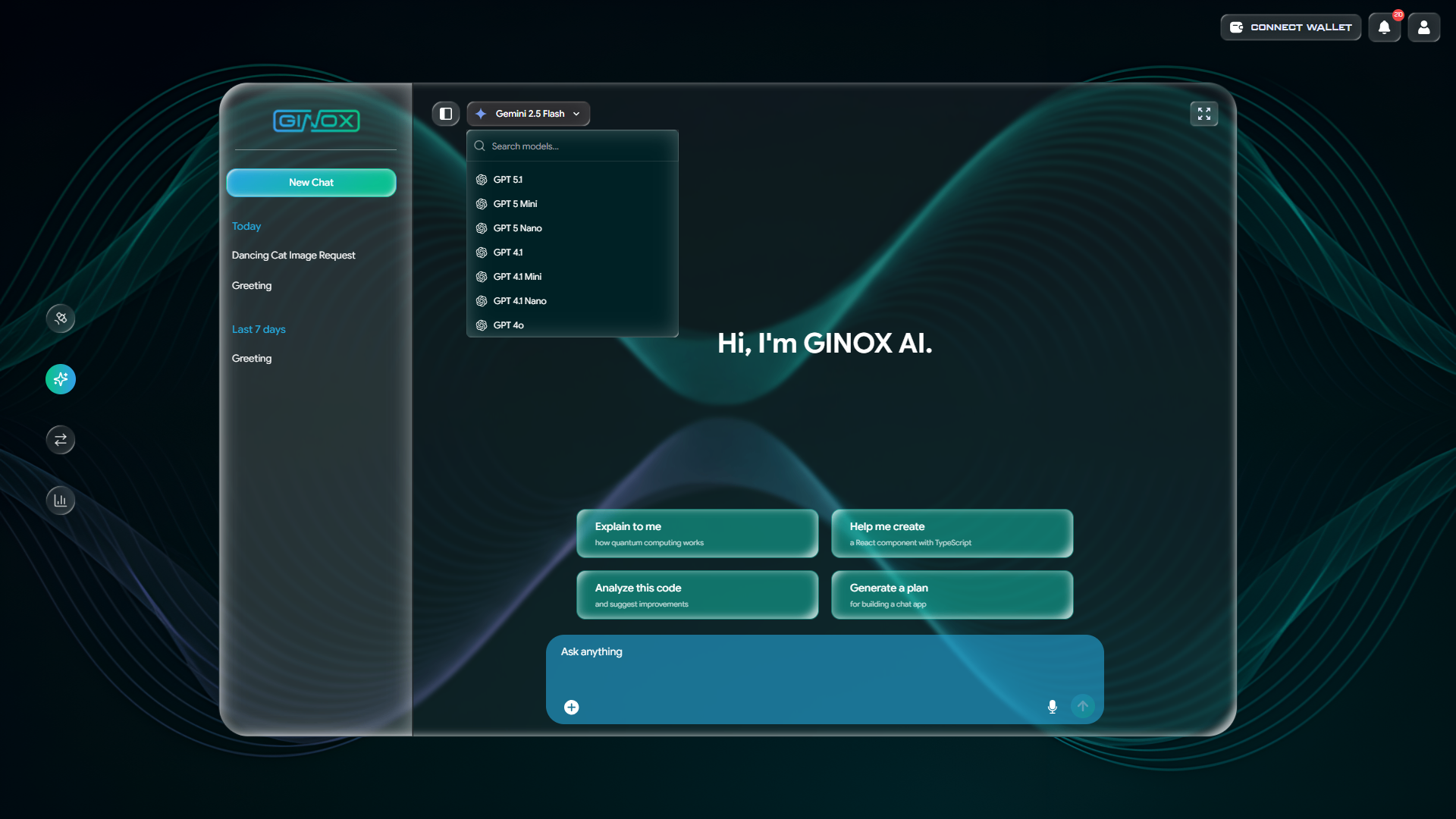
The model selector dropdown with a search bar and the full list of available AI models.
Step 3: Send a Message
Type your question or instruction in the "Ask anything" box at the bottom of the screen and press Enter. The AI will respond directly in the chat. You can ask follow-up questions to continue the conversation, and the AI will remember the context from earlier messages in the same thread.
Below each AI response you will see a row of action buttons:
- Copy: Copies the response text to your clipboard.
- Listen: Reads the response out loud using text-to-speech.
- Thumbs up / Thumbs down: Rate the response to help improve future answers.
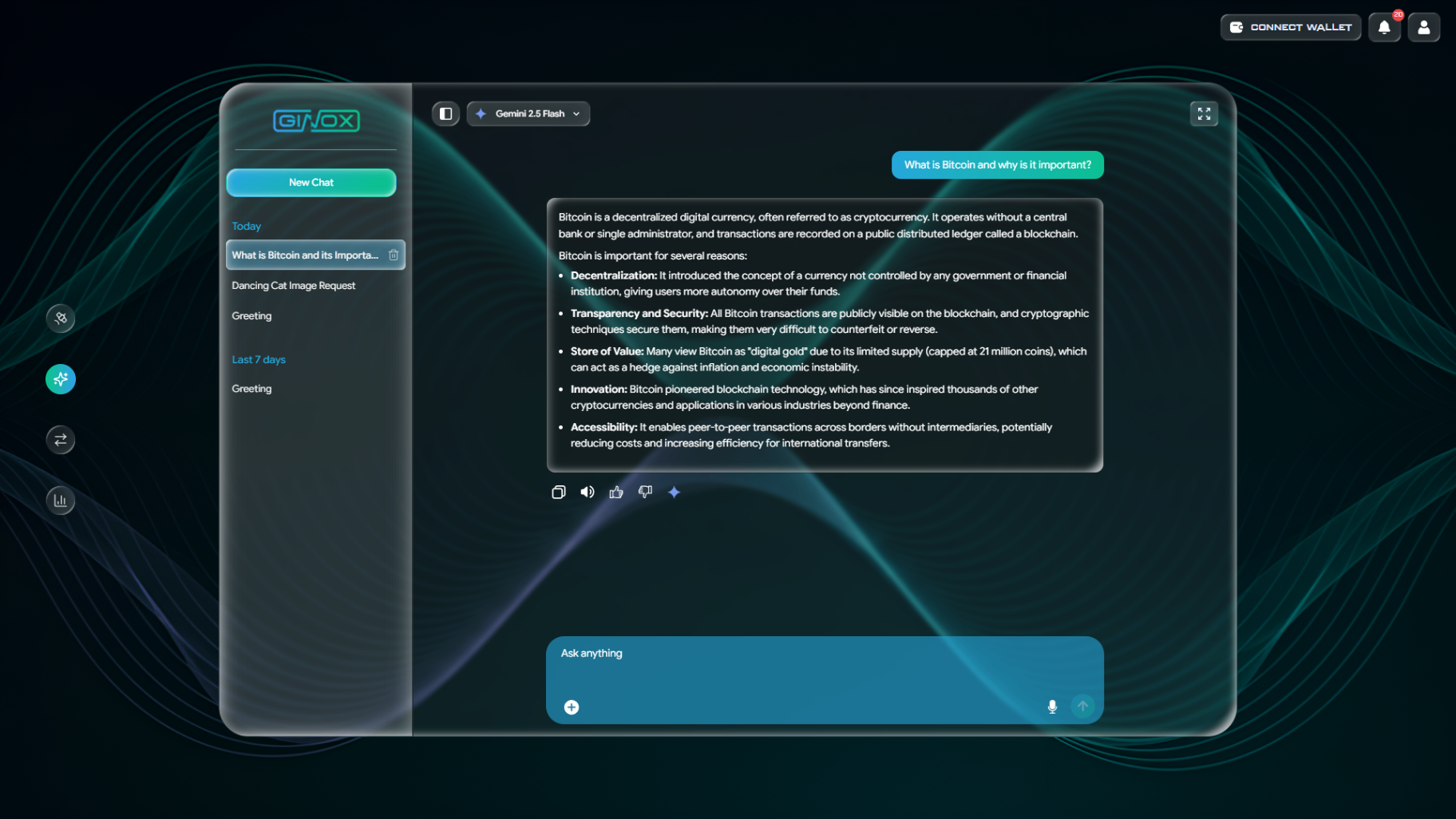
A conversation showing a user question about Bitcoin, the AI response, and the action buttons below it.
Step 4: Edit a Message
If you want to change a message you already sent, hover over it and click the edit icon. This lets you rephrase your question or fix a typo without starting a new conversation. After editing, the AI will generate a new response based on your updated message.
Step 5: Upload Files
You can attach files to your messages for the AI to read and analyze. Click the "+" button on the left side of the input box to open the file picker. Supported file types include images (PNG, JPG, WebP), PDFs, Word documents (.docx), plain text (.txt), Markdown (.md), and JSON files. Once a file is attached, type your question about it and press Enter. For example, you could upload a contract PDF and ask the AI to summarize the key points, or upload a screenshot and ask it to explain what it shows.
Step 6: Use Web Search
When you ask a question that requires up-to-date information, Ginox AI can search the web automatically. You do not need to enable this manually. The AI decides on its own whether a web search is needed based on your question. When it searches, you will see a brief "Thinking" indicator while it fetches results. The response will include information from web sources so you get current data instead of relying only on the model's training knowledge.
Step 7: Switch Models Mid-Conversation
You can change the AI model at any point during a conversation. Click the model dropdown at the top and select a different model. A dialog will appear with the title "Switch Model?" explaining that continuing with the same model uses cached context (which is cheaper), while switching requires rebuilding context and costs more credits. Click "Switch" to confirm or "Cancel" to stay on the current model.
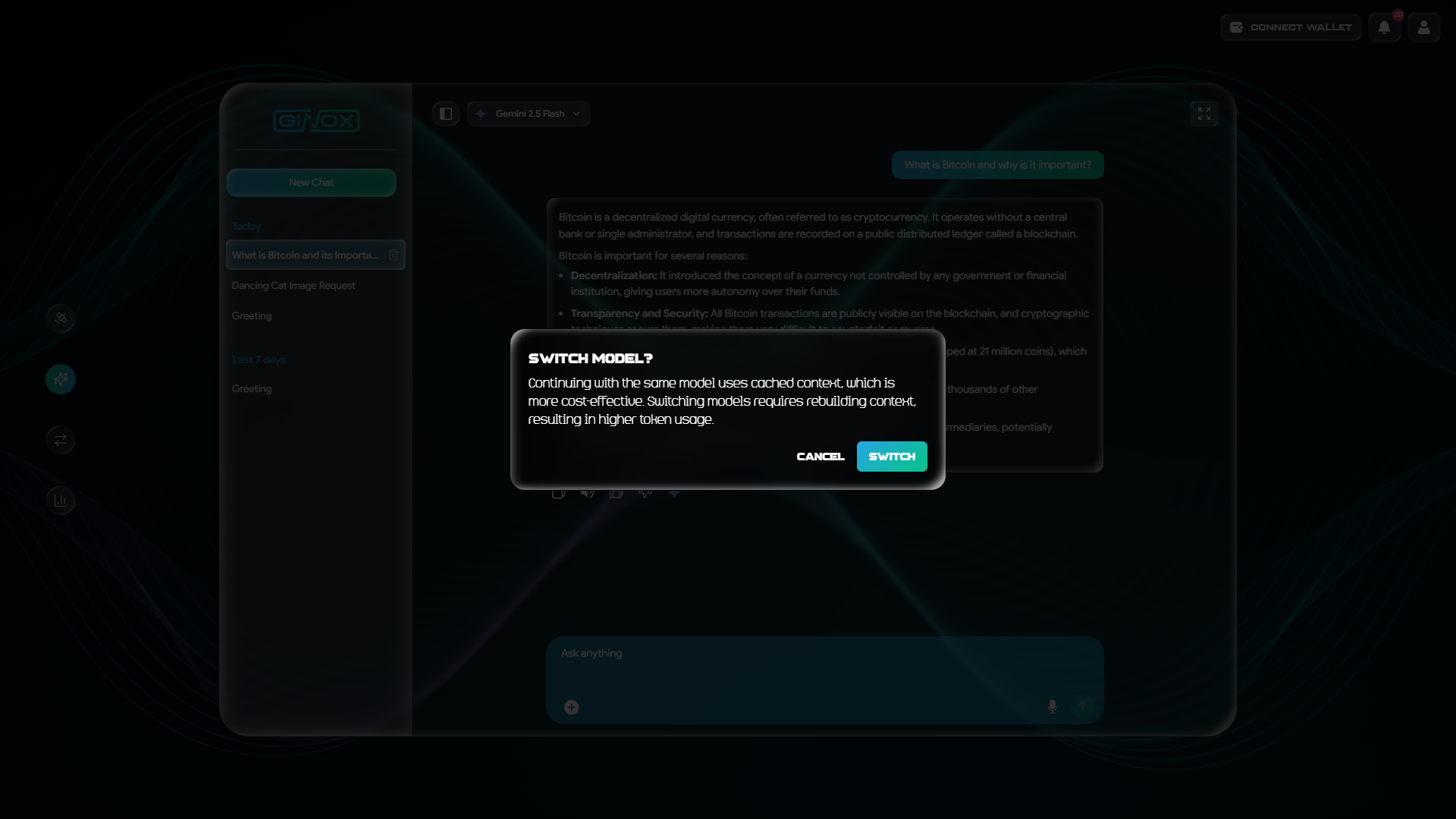
The Switch Model dialog warning that switching models mid-conversation uses more credits.
Step 8: Manage Your Conversations
All your conversations are saved automatically in the sidebar on the left side of the screen. They are organized by date under headings like "Today" and "Last 7 days". Each conversation gets an auto-generated title based on your first message. To reopen a past conversation, click its title in the sidebar. To delete a conversation, click the trash icon next to its name. To start fresh at any time, click the "New Chat" button at the top of the sidebar.
Frequently Asked Questions
Does the AI remember my previous messages?
Yes. Within the same conversation thread, the AI remembers everything you have discussed. This means you can ask follow-up questions without repeating context. However, each conversation is separate, so the AI does not carry knowledge from one chat into another.
How does web search work?
The AI automatically searches the web when it determines your question needs current information. You do not need to toggle anything on. When a search happens, you will see a "Thinking" indicator while results are being fetched. The AI then uses those results to give you an up-to-date answer.
Can I use the chat without credits?
No. Every message you send costs credits. The amount depends on which model you are using and how long the conversation is. Lighter models cost fewer credits per message than larger ones.
What is the difference between the AI models?
Larger models like GPT 5.1 and Gemini 3 Pro handle complex reasoning, coding, and analysis tasks better but cost more credits. Smaller models like GPT 4o Mini and Gemini 2.0 Flash-Lite are faster and cheaper, making them a good choice for simple questions and quick tasks.
Can I rename a conversation?
Conversations are automatically named based on your first message. The title appears in the sidebar next to the conversation entry.