Product: Ginox AI
What is Ginox AI?
Ginox AI is an all-in-one artificial intelligence platform built into the Ginox ecosystem. It brings together conversational AI, image generation, video creation, and live web search in a single interface. You can chat with over 20 AI models from OpenAI, Google, xAI, and DeepSeek, generate images and videos from text prompts, upload documents for analysis, and search the web for up-to-date information. Everything runs on a simple credit-based system.
Whether you need help writing content, generating visuals for a project, researching a topic, or analyzing a document, Ginox AI gives you access to the latest AI models through one clean interface. You do not need to sign up for separate AI services or manage multiple subscriptions.
What You Can Do with Ginox AI
Chat
The core of Ginox AI is its chat interface. Type a question or instruction in the "Ask anything" box and the AI will respond in real time. You can have multi-turn conversations, ask follow-up questions, and switch between different AI models at any point. The chat supports file uploads, so you can attach images, PDFs, Word documents, and other files for the AI to read and analyze. Your conversations are saved in the sidebar and organized by date, so you can pick up where you left off at any time.
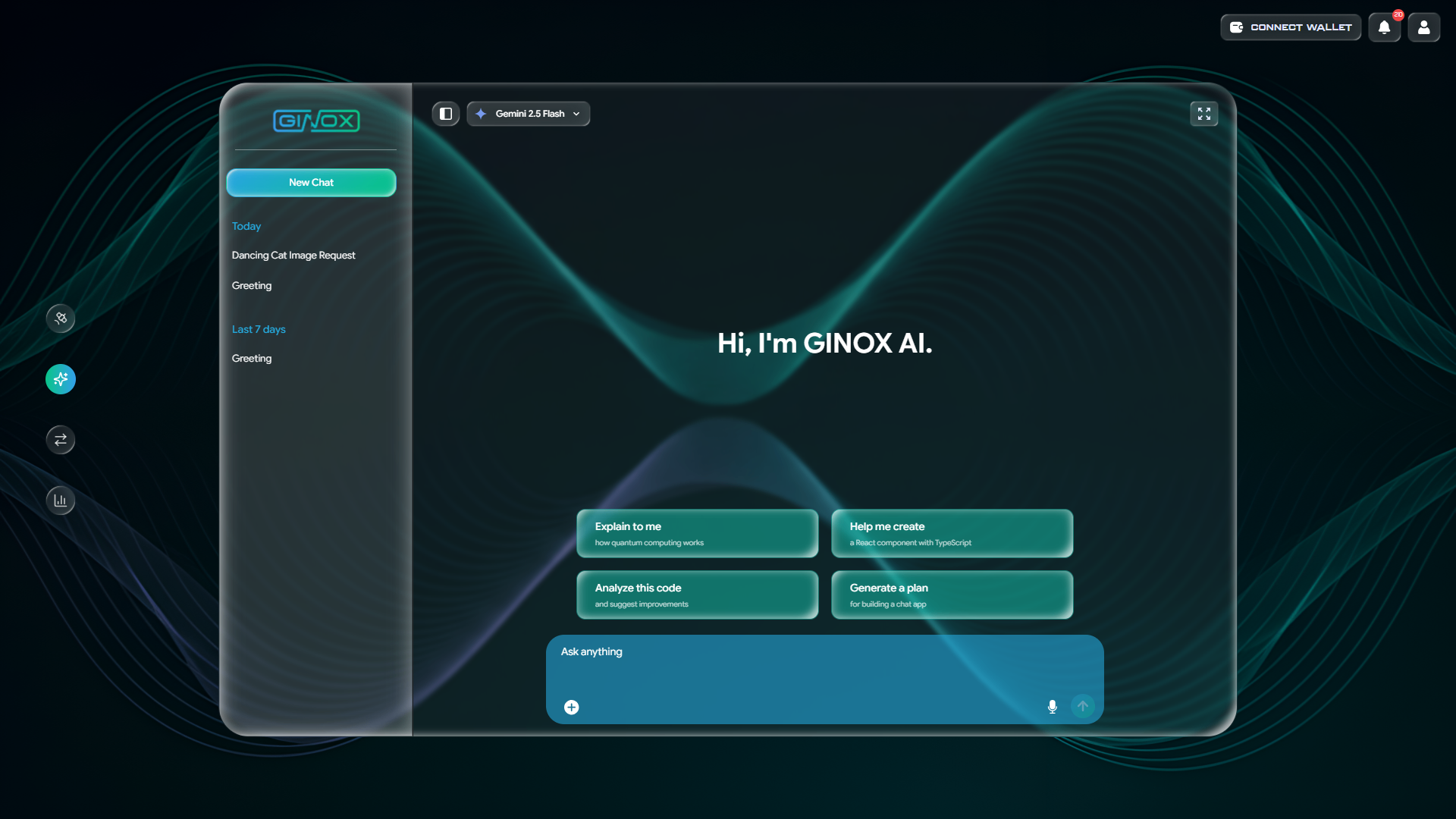
The Ginox AI chat interface with conversation history, model selector, and suggestion cards.
Image Generation
You can generate images directly inside a chat conversation. Describe what you want to see and the AI will create it. Ginox AI supports multiple image generation engines including GPT Image 1 and Google Gemini models. You can choose between different sizes (square, landscape, or portrait) and quality levels. Generated images can be downloaded in multiple formats.
Video Generation
Ginox AI can also create short videos from text descriptions. Two video engines are available: Luma Ray Flash 2 for fast generation with good motion quality, and OpenAI Sora 2 for high quality cinematic output. Videos can be generated at different resolutions up to 4K and in various aspect ratios. You can also turn a still image into a video by uploading it as a reference.
Web Search
When you ask a question that requires current information, Ginox AI can automatically search the web to find the answer. The search results include sources with links, so you can verify the information yourself. This makes Ginox AI useful for research, fact checking, and staying up to date on topics that change frequently.
Available AI Models
Ginox AI gives you access to over 20 AI models from four leading providers. You can switch between models at any time using the dropdown at the top of the chat. Each model has different strengths, so you can choose the one that works best for your task.
- OpenAI: GPT 5.1, GPT 5 Mini, GPT 5 Nano, GPT 4.1, GPT 4.1 Mini, GPT 4.1 Nano, GPT 4o, GPT 4o Mini
- Google: Gemini 3 Pro Preview, Gemini 3 Flash Preview, Gemini 2.5 Pro, Gemini 2.5 Flash, Gemini 2.5 Flash-Lite, Gemini 2.0 Flash, Gemini 2.0 Flash-Lite
- xAI: Grok 3, Grok 3 Fast, Grok 3 Mini, Grok 3 Mini Fast, Grok 2-1212, Grok 2 Vision-1212
- DeepSeek: DeepSeek Chat, DeepSeek Reasoner
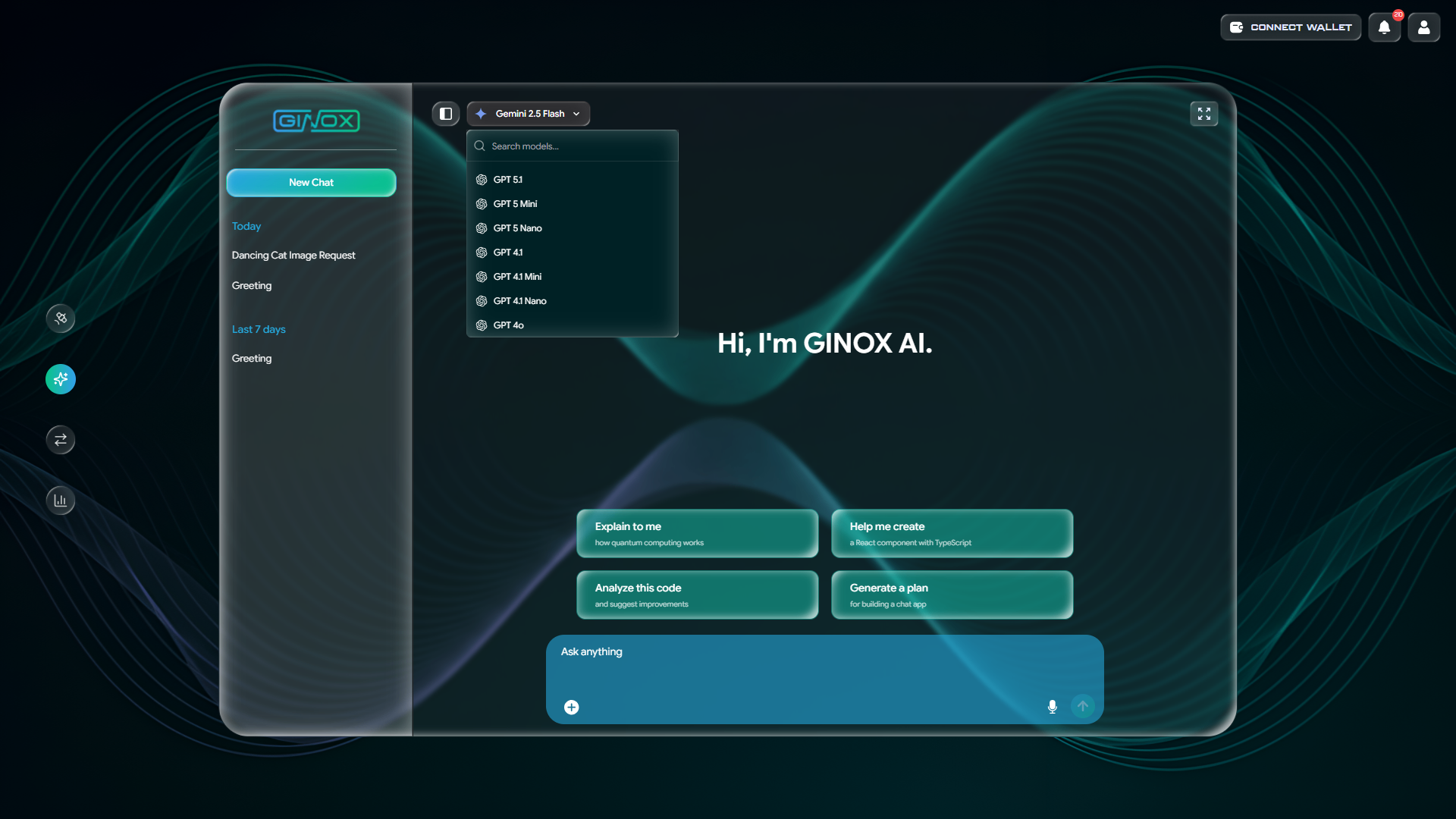
The model selector dropdown in Ginox AI showing available models from OpenAI, Google, xAI, and DeepSeek.
Credits and Pricing
Ginox AI uses a credit-based system. Every action you take (sending a message, generating an image, creating a video, or running a web search) costs a certain number of credits. The cost depends on the model and feature you use. You can purchase credits in three packages:
- Starter Package: $10 for 1,000 credits
- Professional Package: $45 for 4,500 credits
- Enterprise Package: $120 for 12,000 credits
All payments are made in USDT. You can buy credits from the Pricing page, which is accessible from the Ginox AI interface.
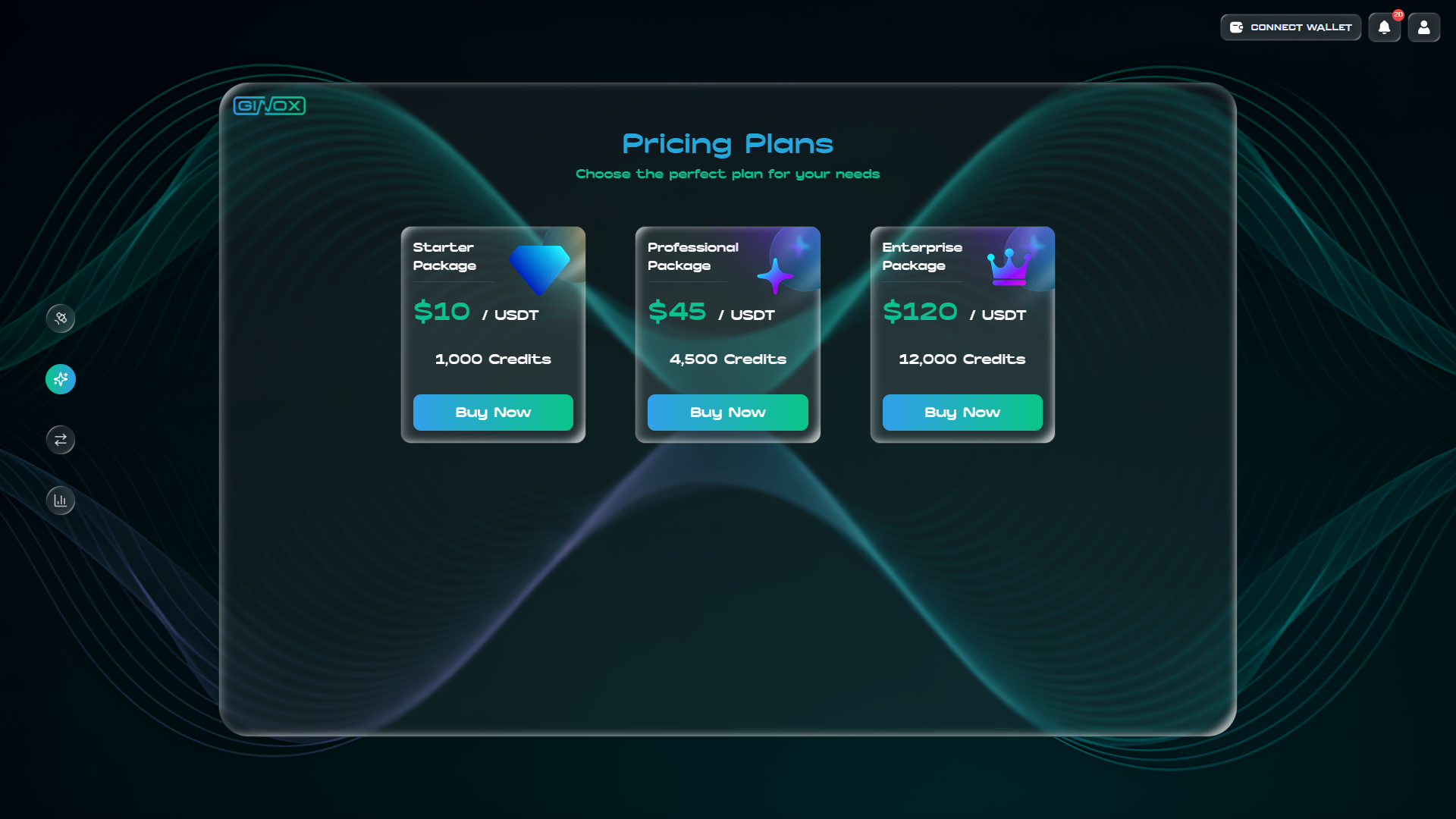
The Ginox AI Pricing Plans page with Starter, Professional, and Enterprise credit packages.
AI Dashboard
The AI Dashboard lets you track your usage and manage your credits. It shows your total AI tasks, credits spent, most used feature type, and last activity. Below the summary cards you will find a detailed usage history table that you can filter by date range, task type (Chat, Search, Image, Video), and AI model. You can access the dashboard from My Space in the main navigation.
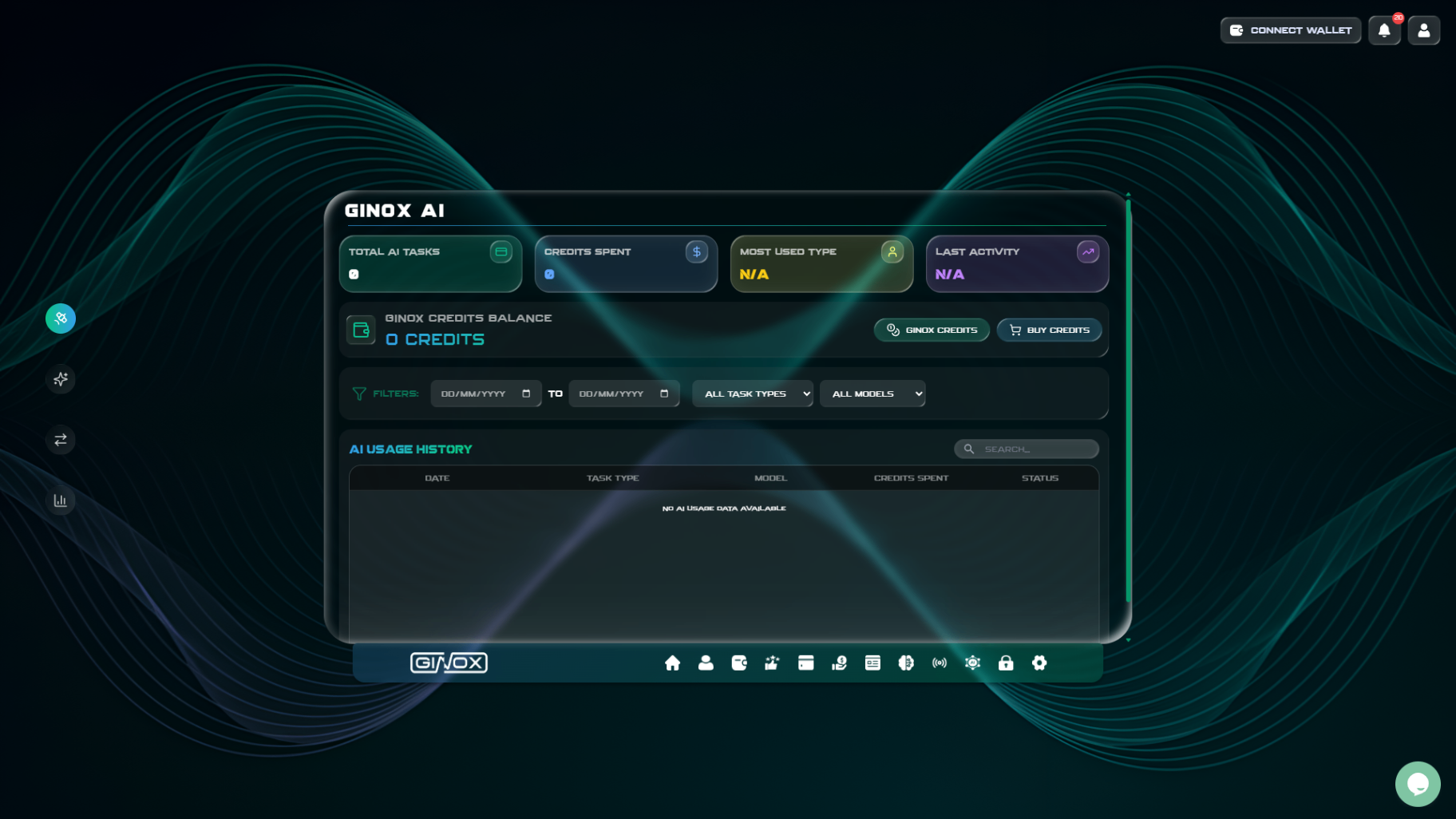
The Ginox AI Dashboard showing usage statistics, credit balance, and usage history with filters.
How to Access Ginox AI
1. Go to app.ginox.io and sign in to your Ginox account.
2. Click "Ginox AI" in the left sidebar or navigate directly to app.ginox.io/ai.
3. Pick an AI model from the dropdown at the top of the chat.
4. Type your question or prompt in the "Ask anything" box and press enter.
Tips
- Switch models mid-conversation if the first one does not give you the result you want.
- Upload files (PDFs, images, documents) directly into the chat for the AI to analyze.
- Be specific in your prompts. The more detail you give, the better the output.
- Use web search for questions about recent events, prices, or anything that changes over time.
- Check the AI Dashboard regularly to keep track of how many credits you have left.
- Start with a smaller credit package to try the platform before committing to a larger one.