Product: Ginox Core
1. Chatting with Support
Starting a Chat
- Click the chat widget on the website
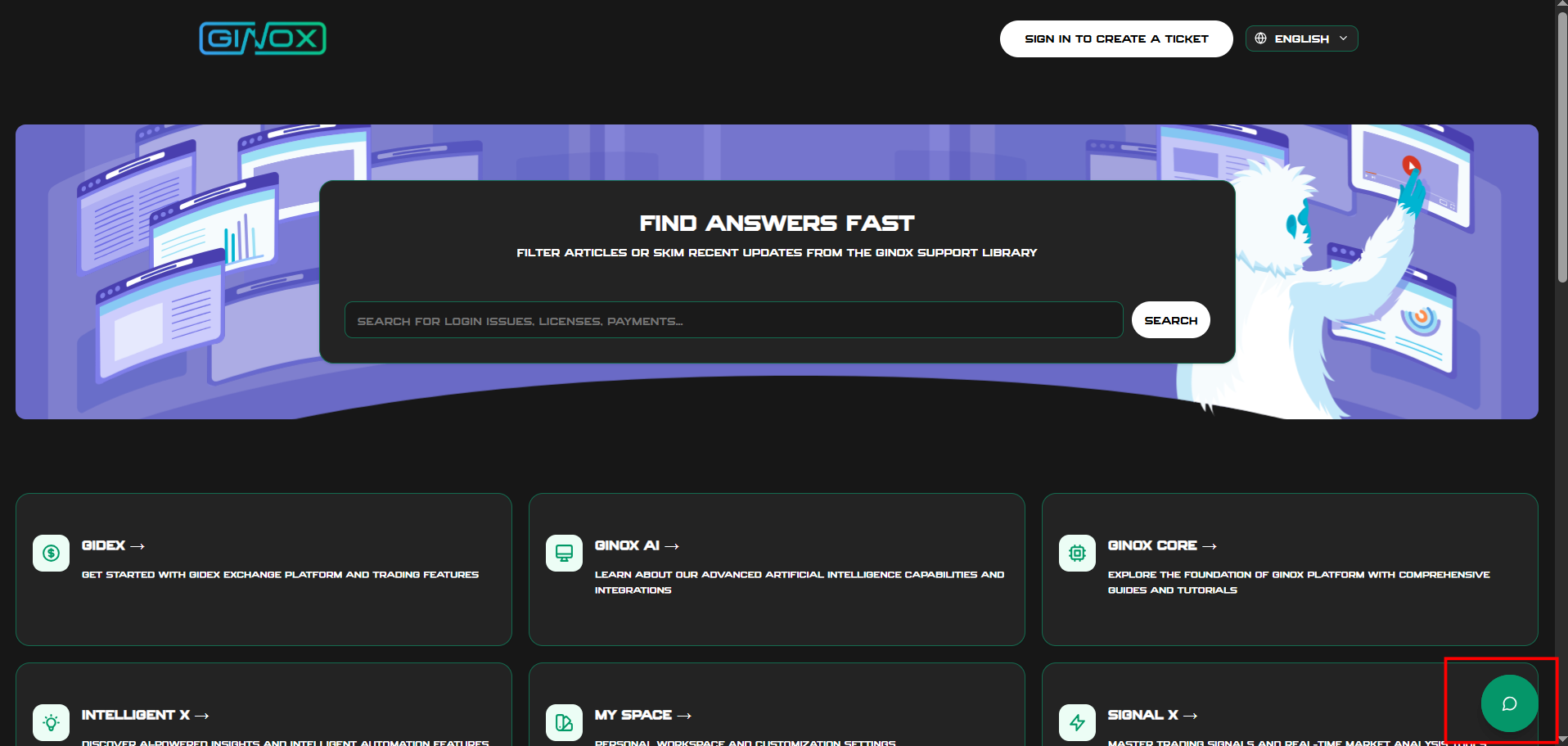
2. Enter your name and email
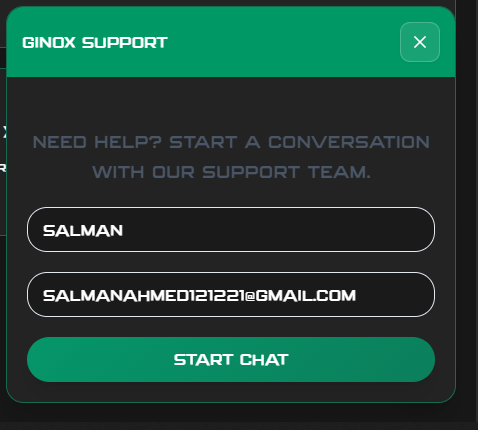
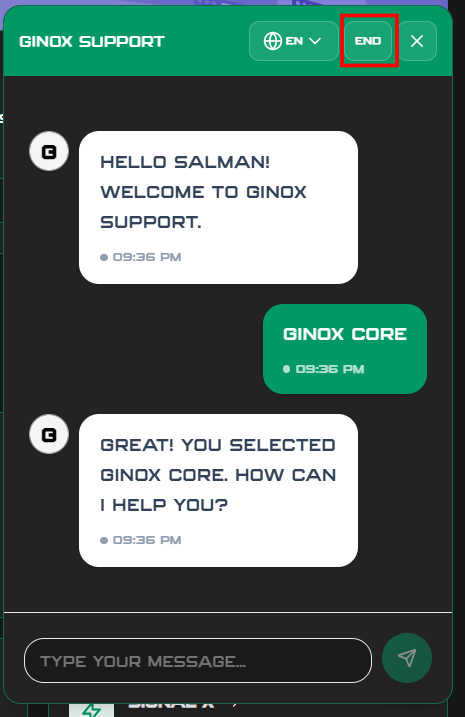
3. You'll receive a greeting and a list of products
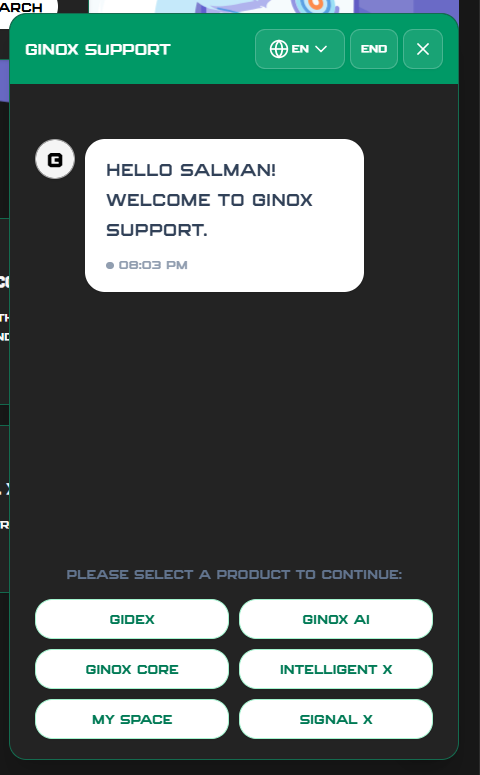
4. Then you’ll need to select the product you want help with, and after that the chat will start.
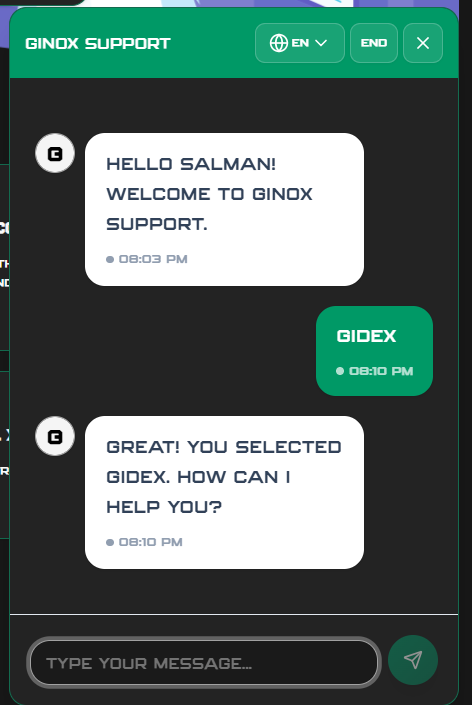
Resuming a Previous Chat
- If you return to the site, your previous chat may still be available
- You'll see your full conversation history
Selecting Your Product
- Choose the product you need help with
- Click or type the product name
- The assistant confirms your selection
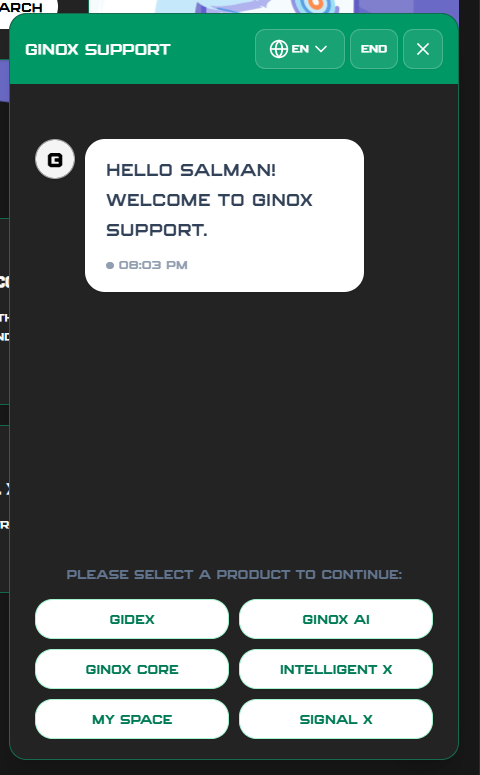
Available products: Gidex, Ginox Core, Ginox AI, Intelligent X, Platform, Signal X
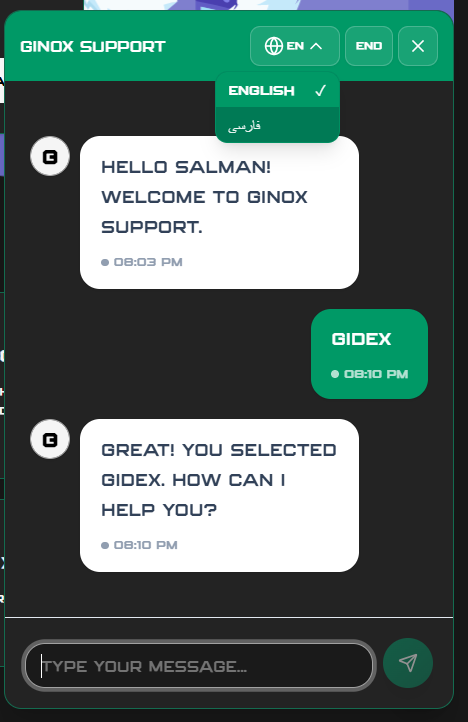
Switching Language
- The chat supports English and Persian
- Type in your preferred language — the assistant will respond in the same language
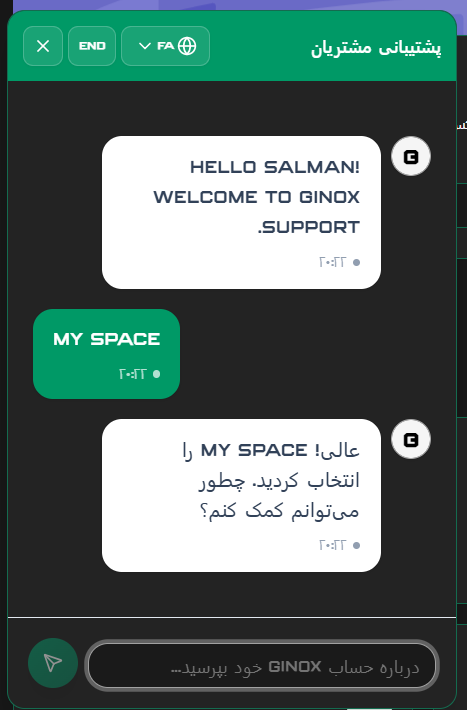
. Or use the language toggle for change the language
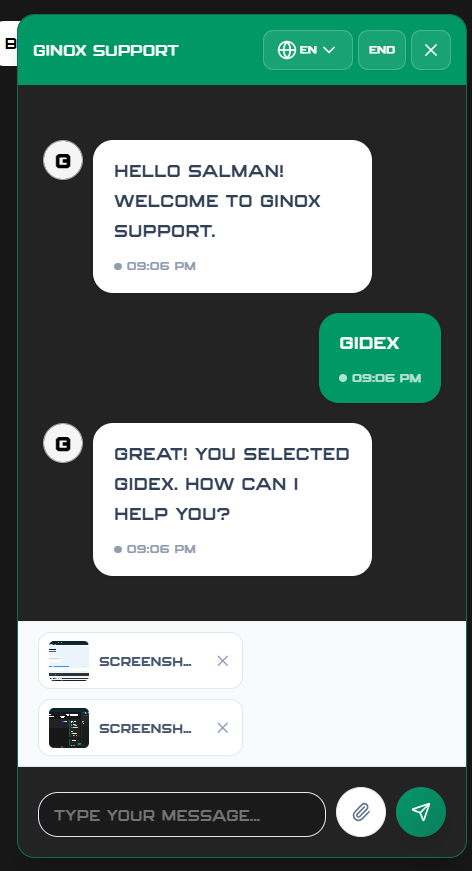
Attaching Images
- Click the attachment icon
- Select an image (max 10MB)
- Supported formats: JPEG, PNG, GIF, WebP
- You can attach up to 4 images per message
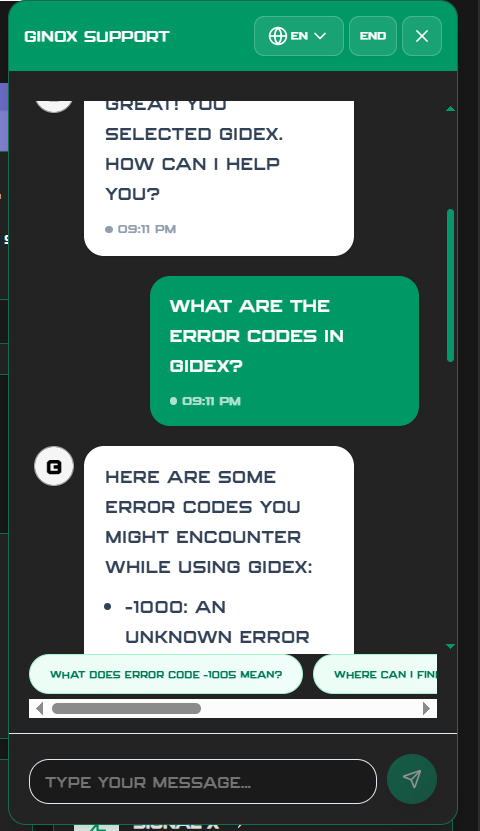
Getting Answers from AI
- Ask your question in natural language
- The AI searches the knowledge base for answers
- You'll receive helpful suggestions for follow-up questions
When You're Connected to a Human Agent
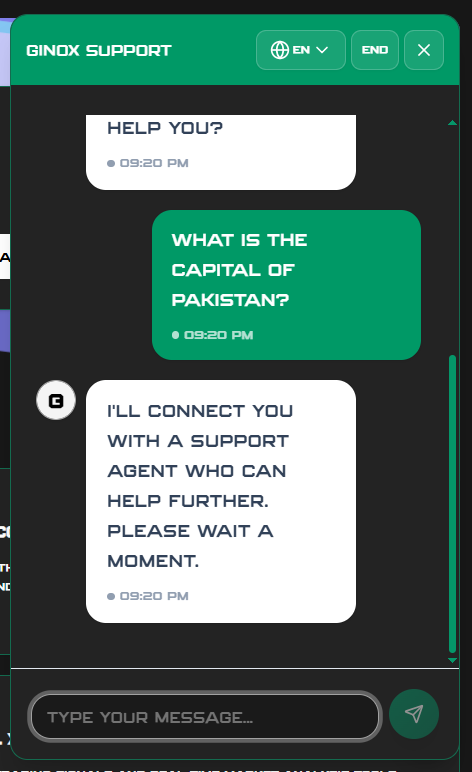
If the AI can't answer your question and agents are available:
- You'll see: "Connecting you with a support agent..."
- Wait for an agent to join the chat
- Continue chatting once connected
When a Ticket is Created for You
If the AI can't help and no agents are available:
- The assistant asks: "Would you like to create a support ticket?"
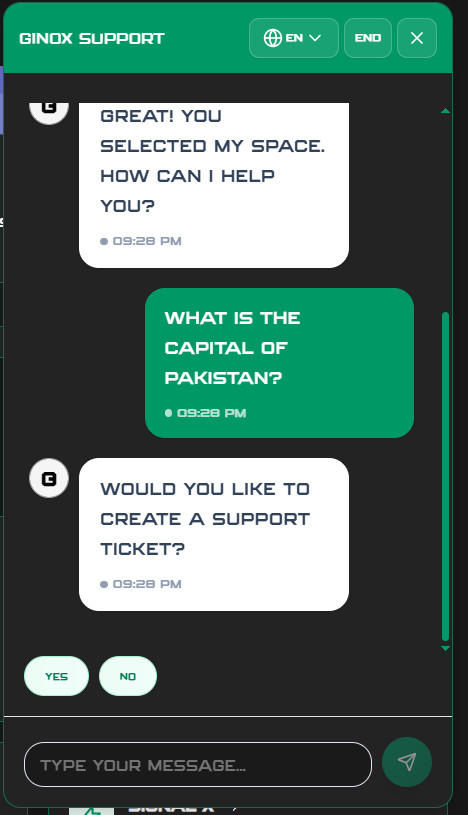
- If you say Yes:
- A ticket is created automatically
- You receive an email confirmation
- You can add more details if needed
- If you say No:
- The session closes
- You can return anytime
Adding Details to Your Ticket
After a ticket is created from chat:
- The assistant asks if you want to add more details
- Say Yes to provide additional information
- Your details are added to the ticket
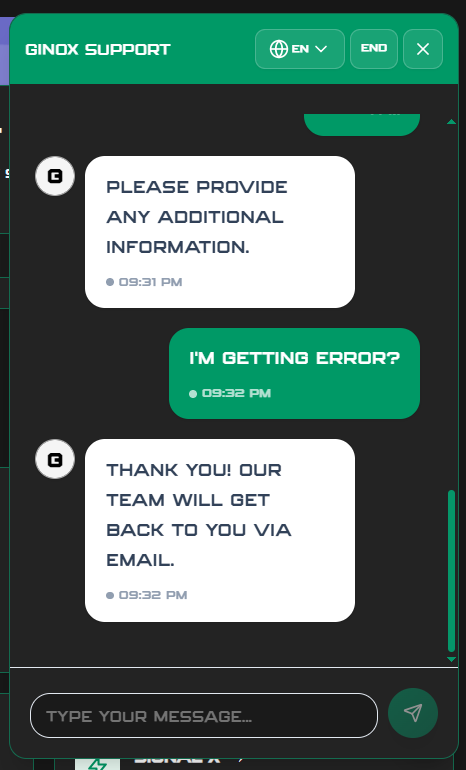 4. The team will respond via email
Ending Your Chat
- Click "End Chat" when you're done
- The session closes
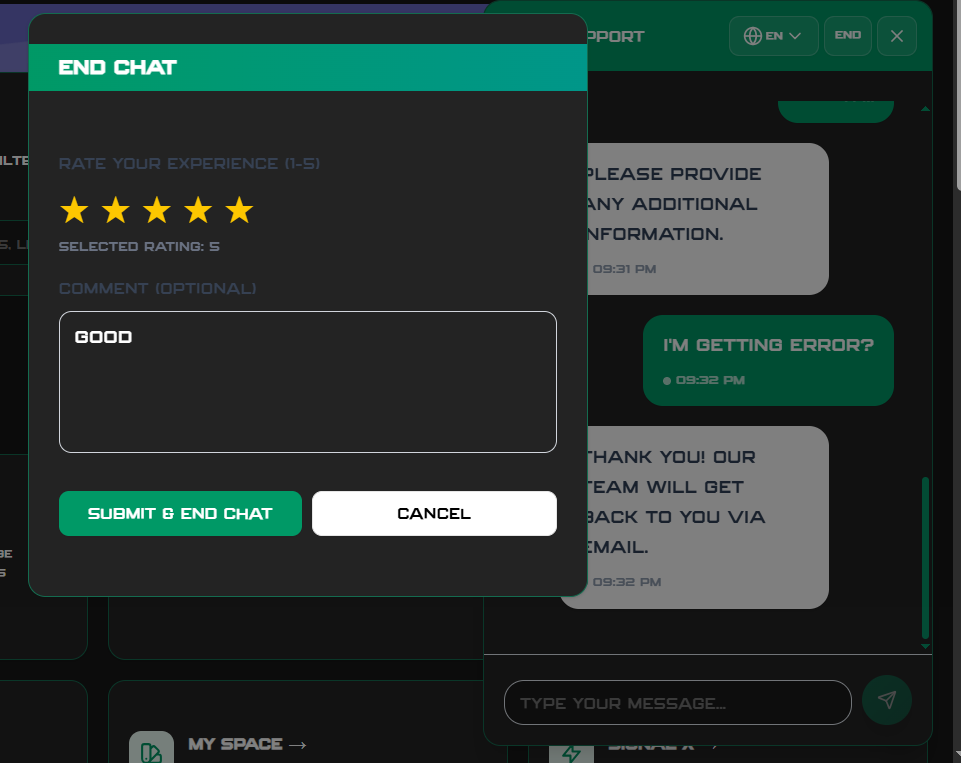
Rating Your Experience
After the chat ends:
- You'll be asked to rate your experience (1-5 stars)
- Optionally add written feedback
- You have 24 hours to submit a rating
2. Support Tickets
When to Create a Ticket
- Complex issues that need documentation
- When you prefer email responses
- Non-urgent requests
Creating a Ticket
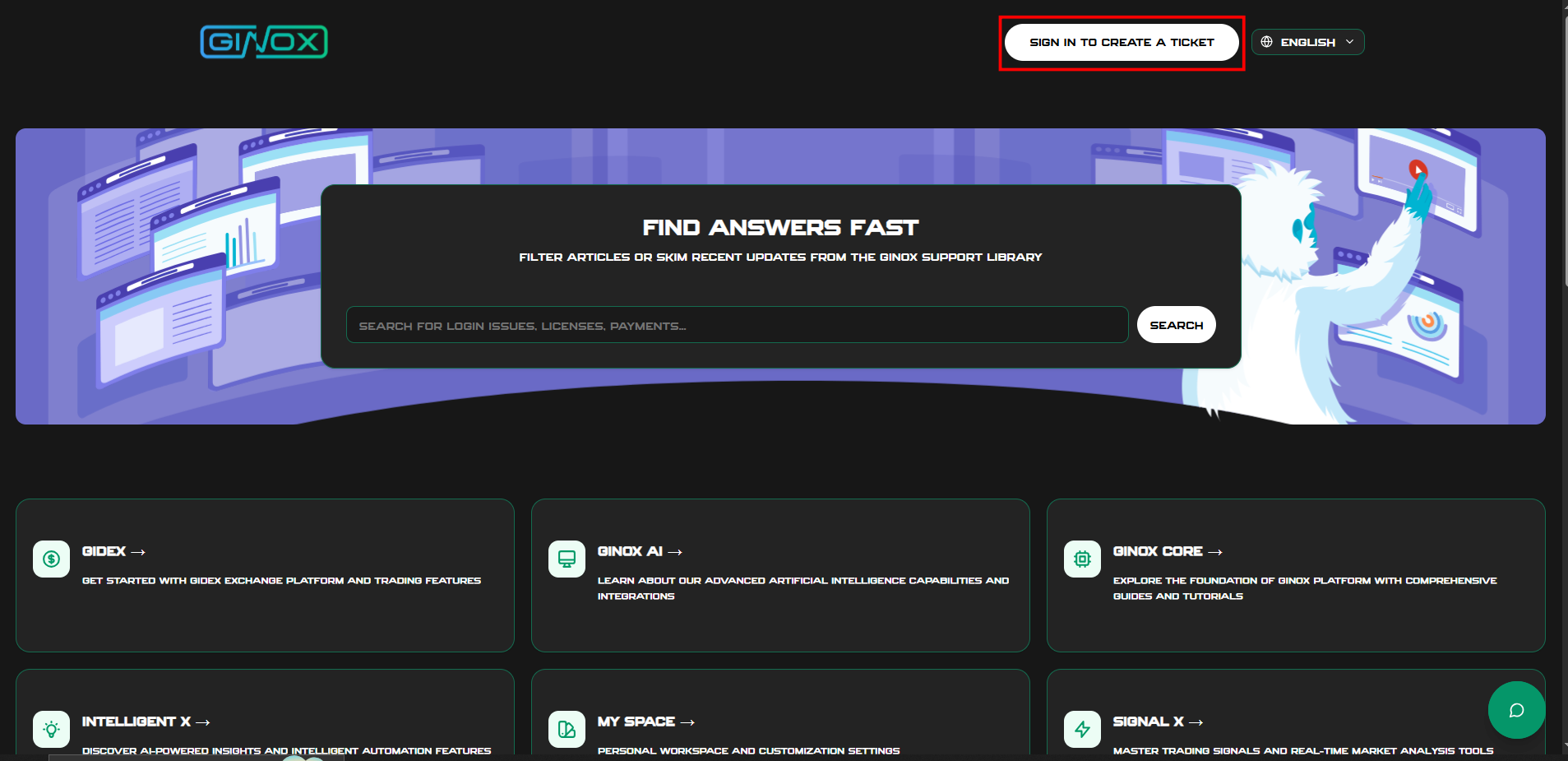
1. Click on the Sign In to Create Ticket button. A sign-in form will appear. Enter your email and password, and then you will be redirected to the ticket page.
 2. Go to "Create Ticket" or "New Ticket"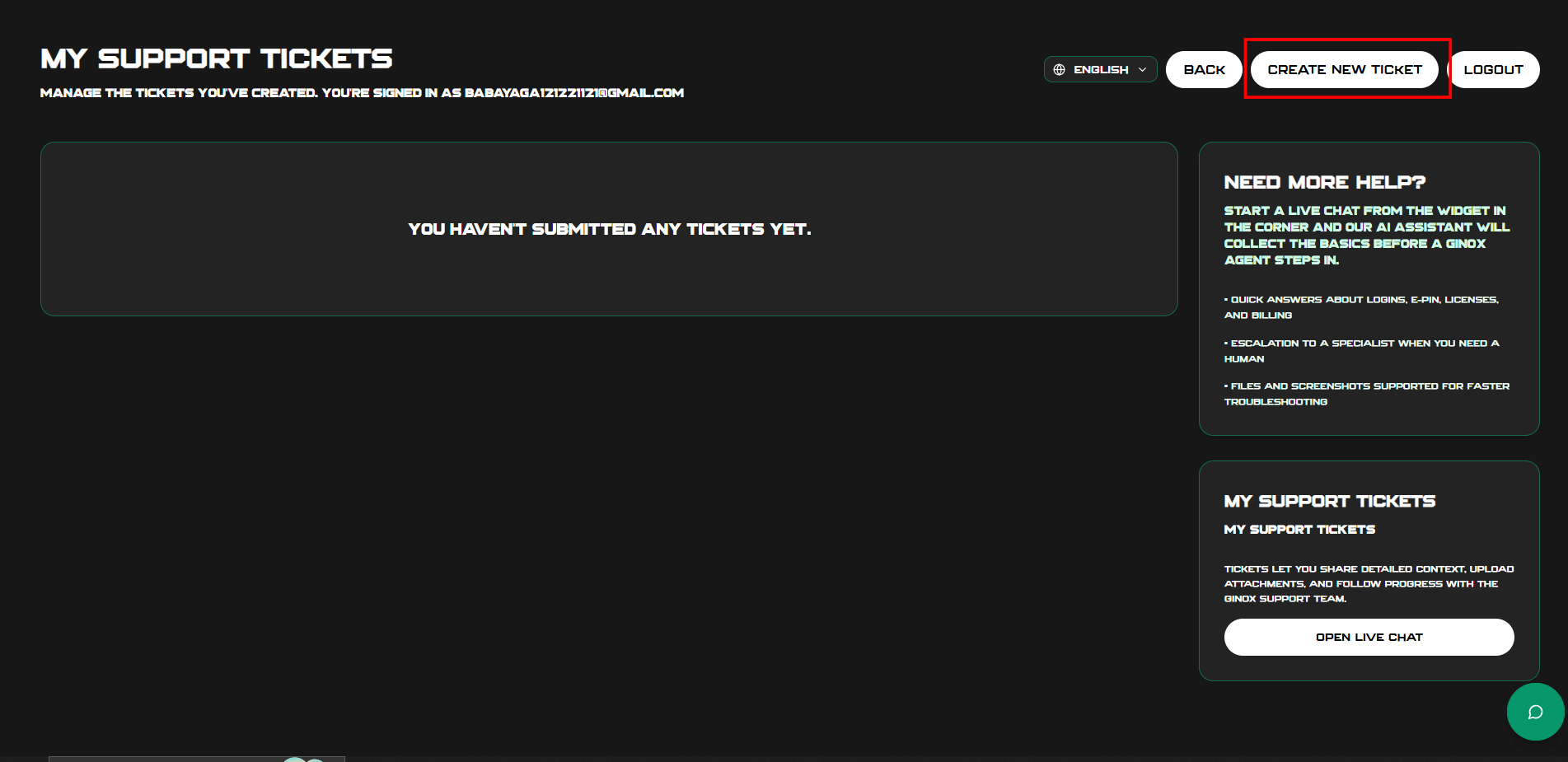
3. A ticket form appears
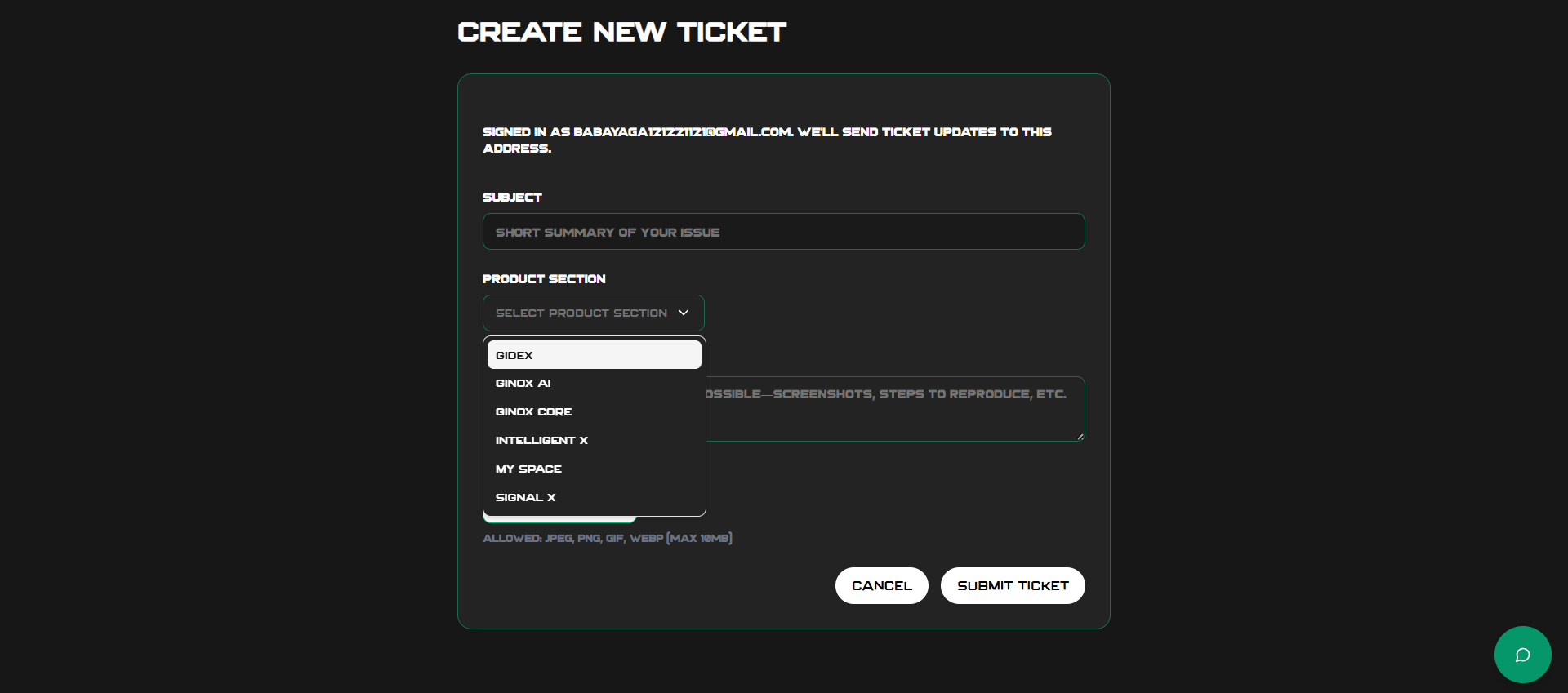
4. Select the product/section5. Enter a subject line6. Describe your issue in detail7. Attach files if needed8. Submit9. Your ticket will be created successfully
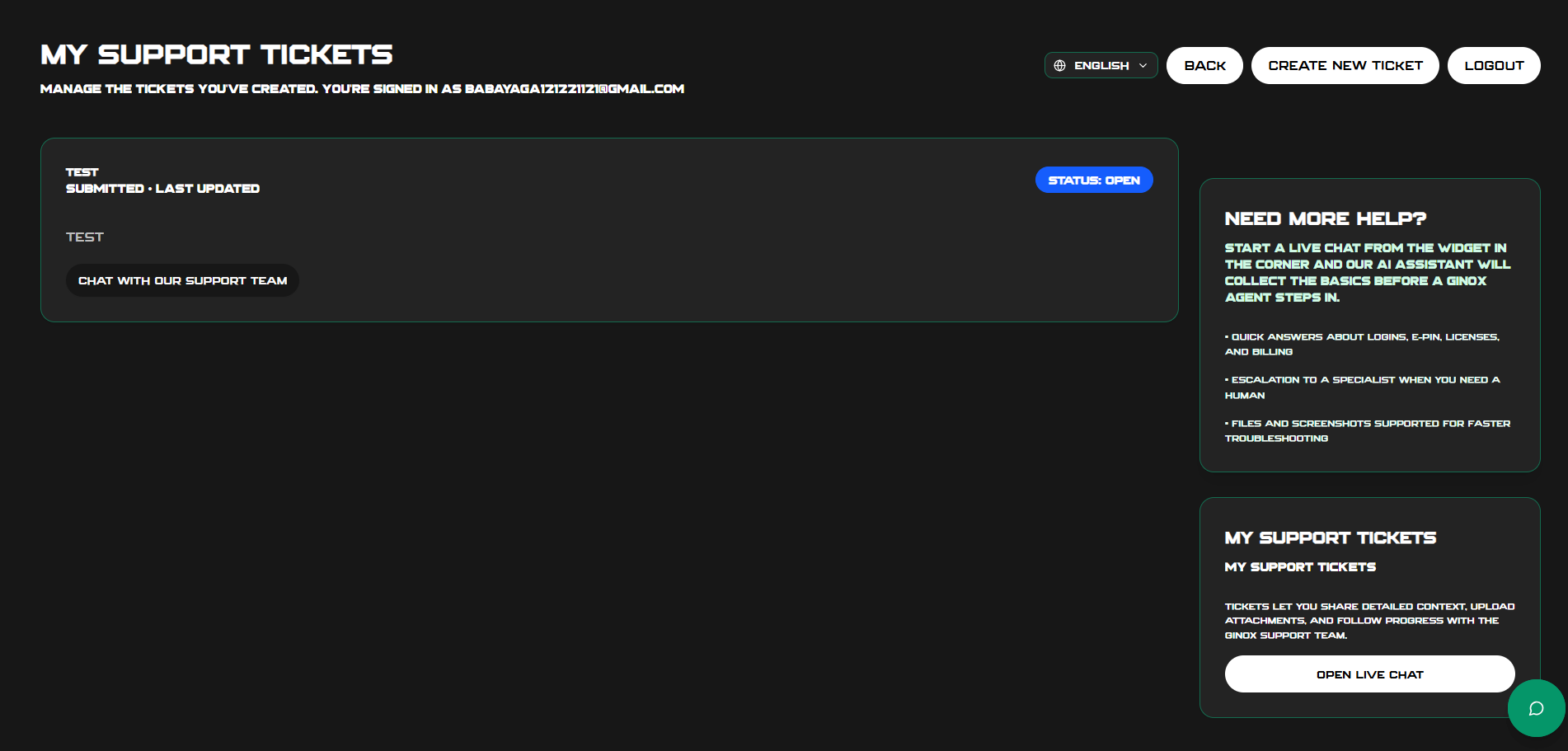
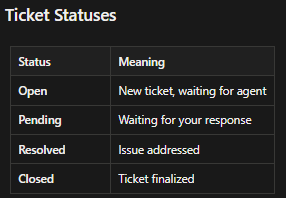
Viewing Your Tickets
- On the ticket page, you can view your submitted tickets.
Replying to a Ticket
- Click on the Chat with Our Support Team button to start chatting, and the reply page will open.
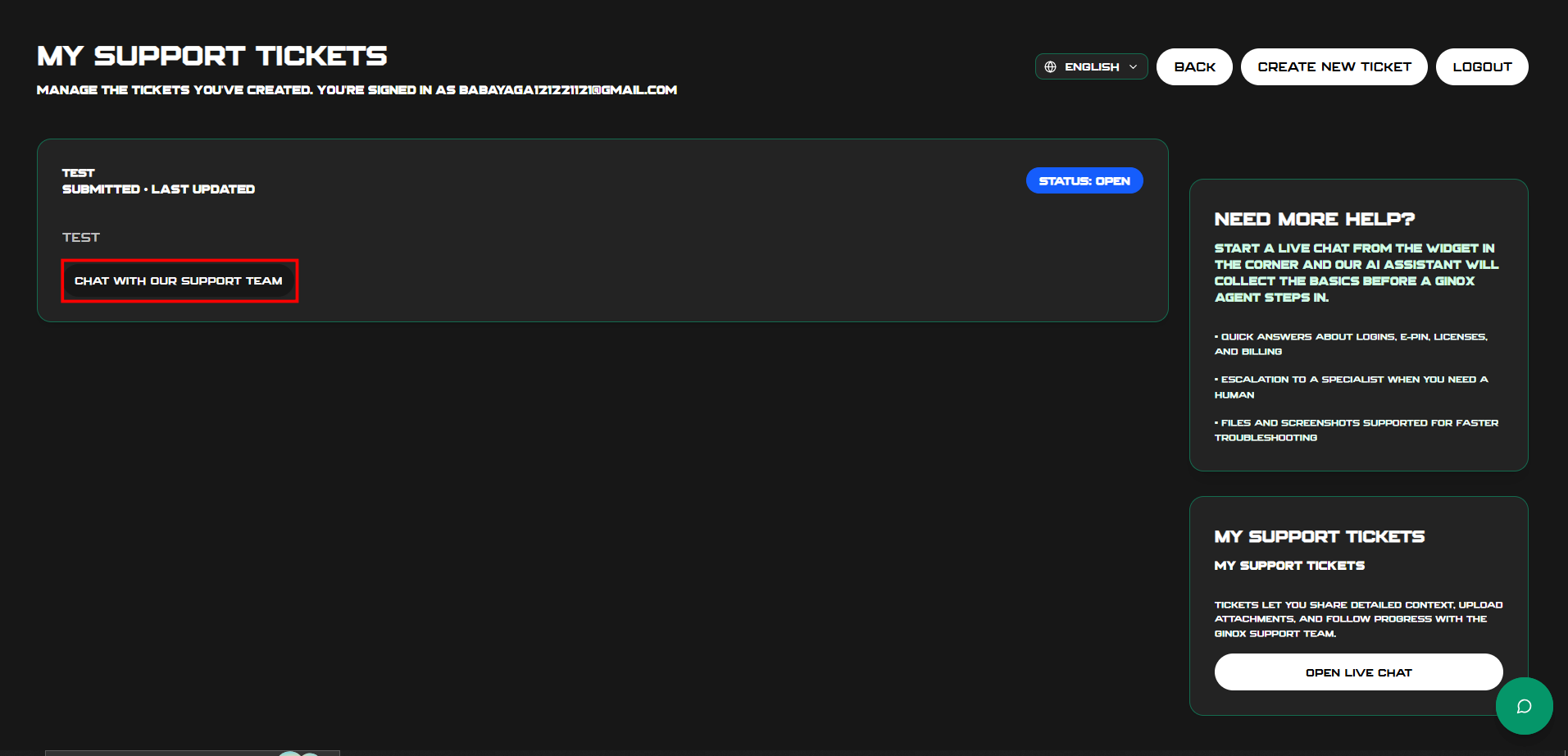 Type your replyAttach files if neededSubmit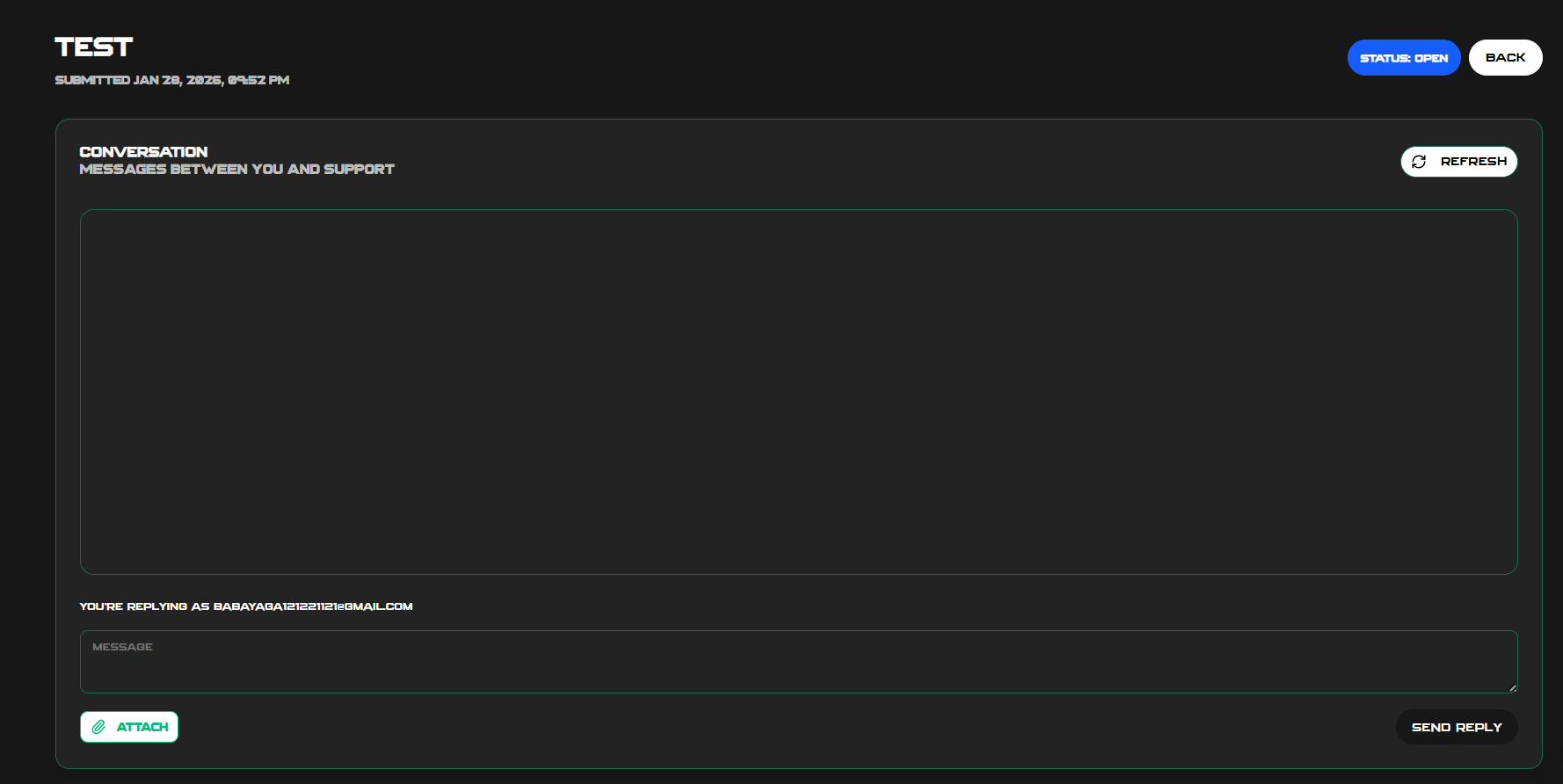
3. Guest Support
You can get help without creating an account.
Chatting as a Guest
- Start a chat (just provide name and email)
- Use all chat features normally
- If a ticket is created, it's linked to your email
Accessing Your Guest Ticket
- Check your email for the ticket link
- Or visit the guest tickets page with your ticket ID
- No login required
Replying to Your Guest Ticket
- Open your ticket via the link
- Add your reply
- Submit — no account needed
Limitations
- You can only view individual tickets (not a full list)
- Tickets are identified by email
4. Help Center
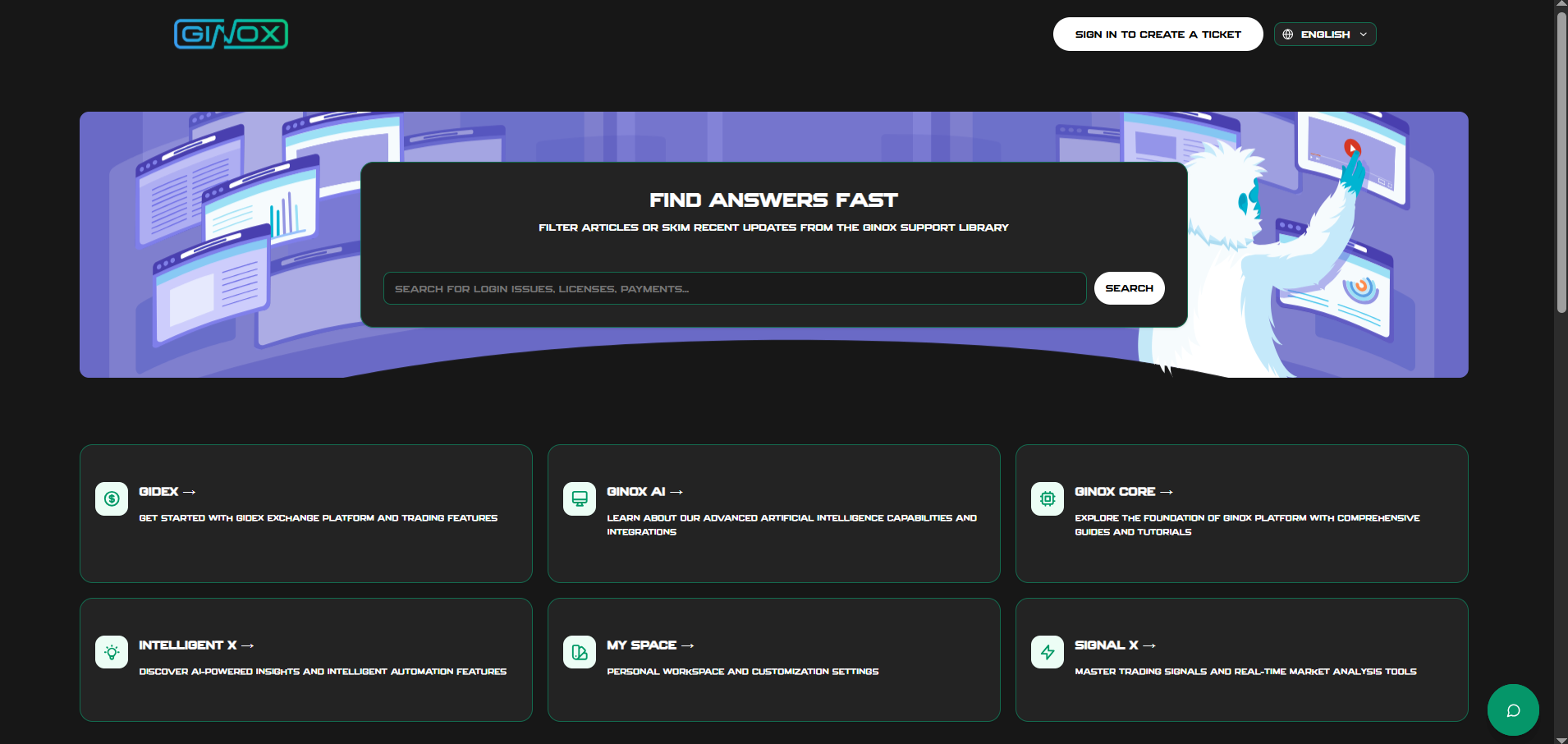
Browsing Articles
- Go to the Help Center
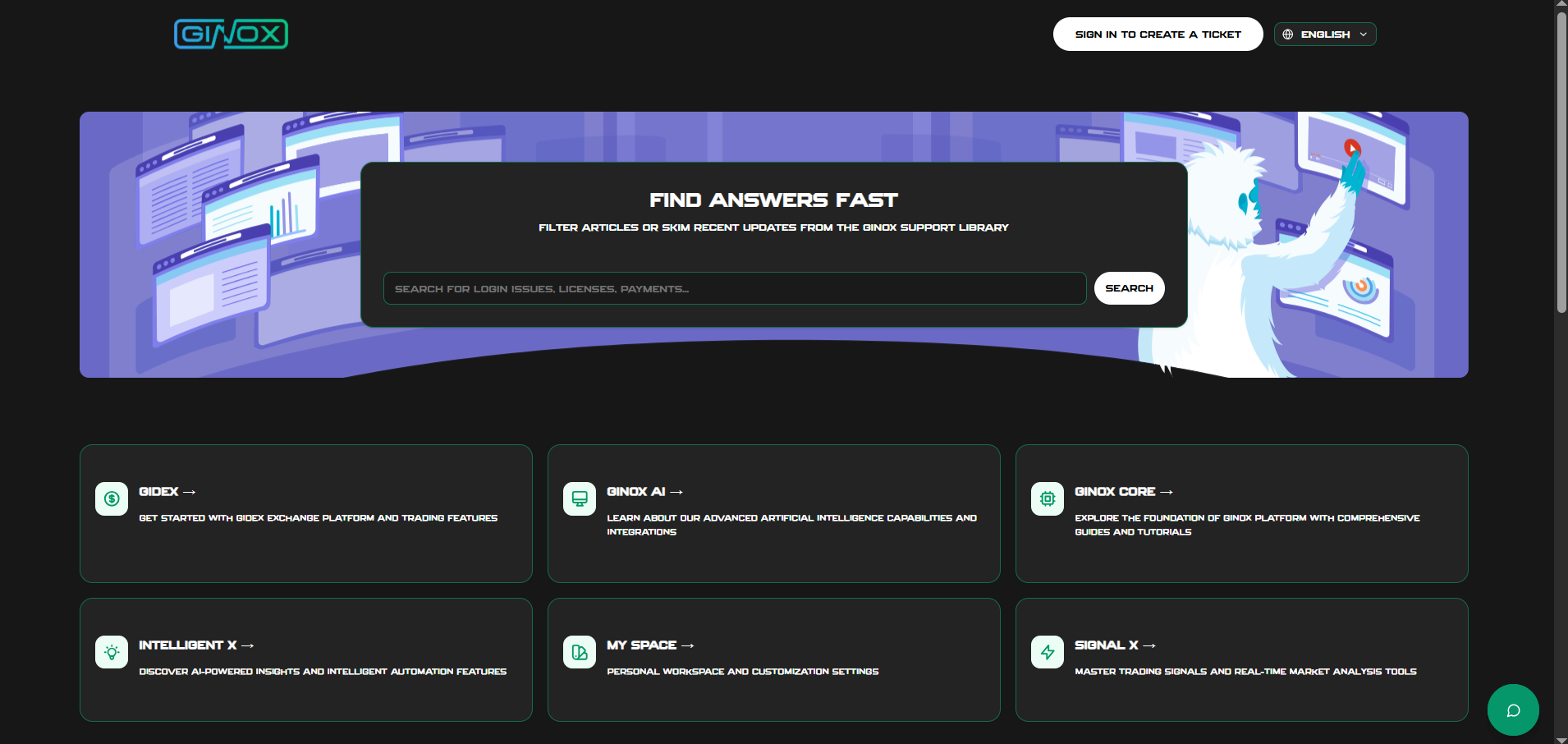
2. Select the product category you need help with.
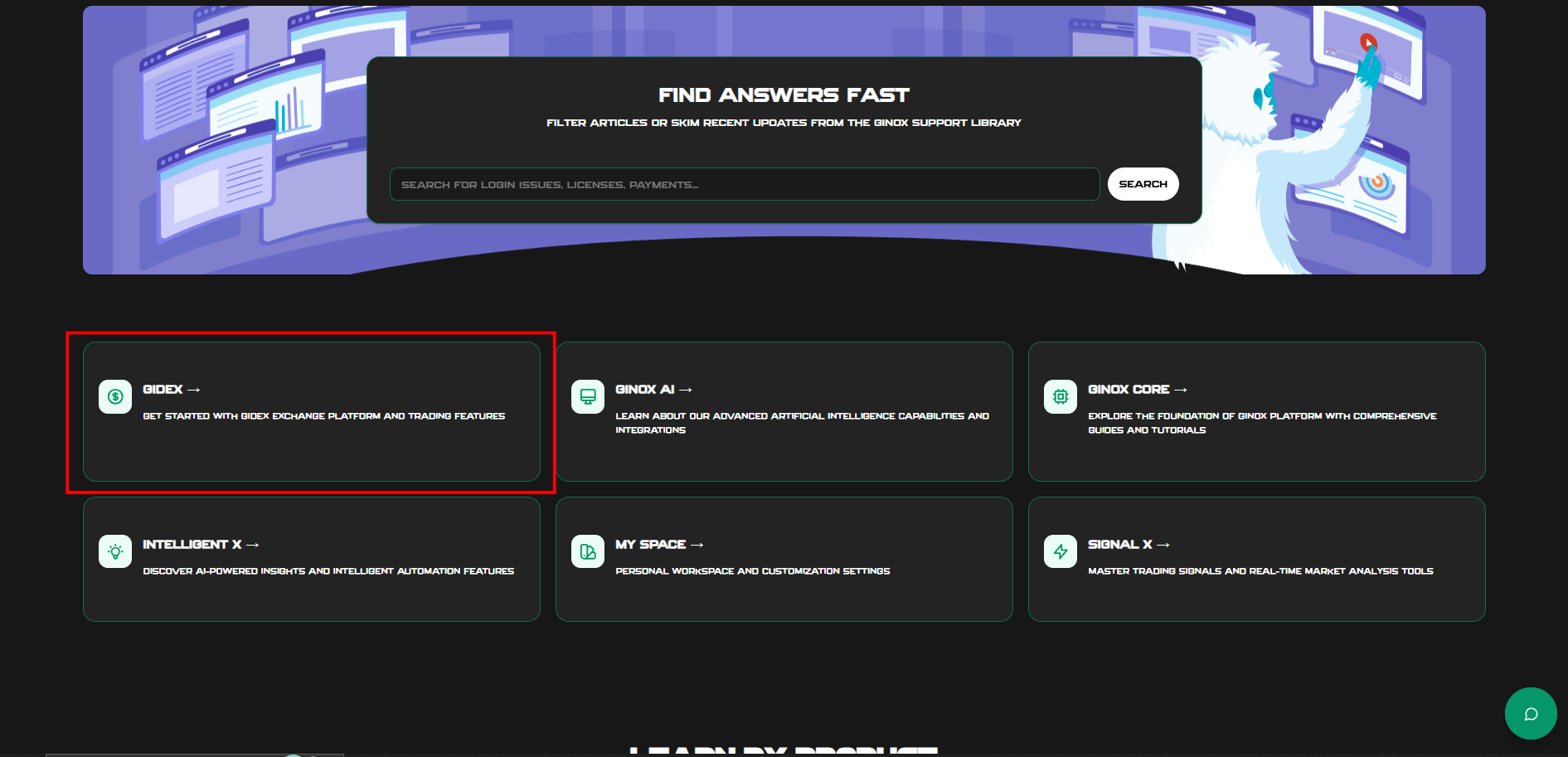
3. You can view the listed articles related to that product.
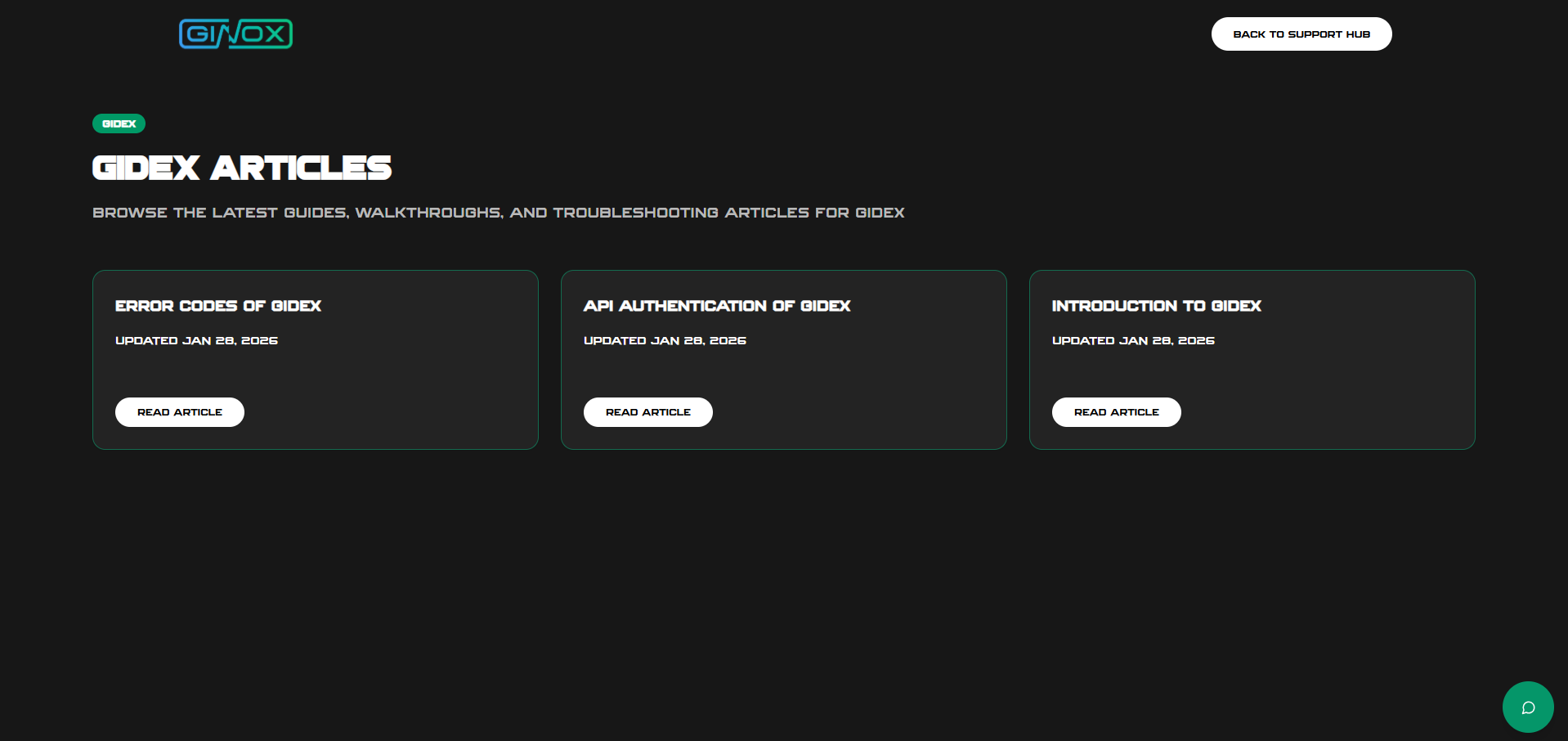
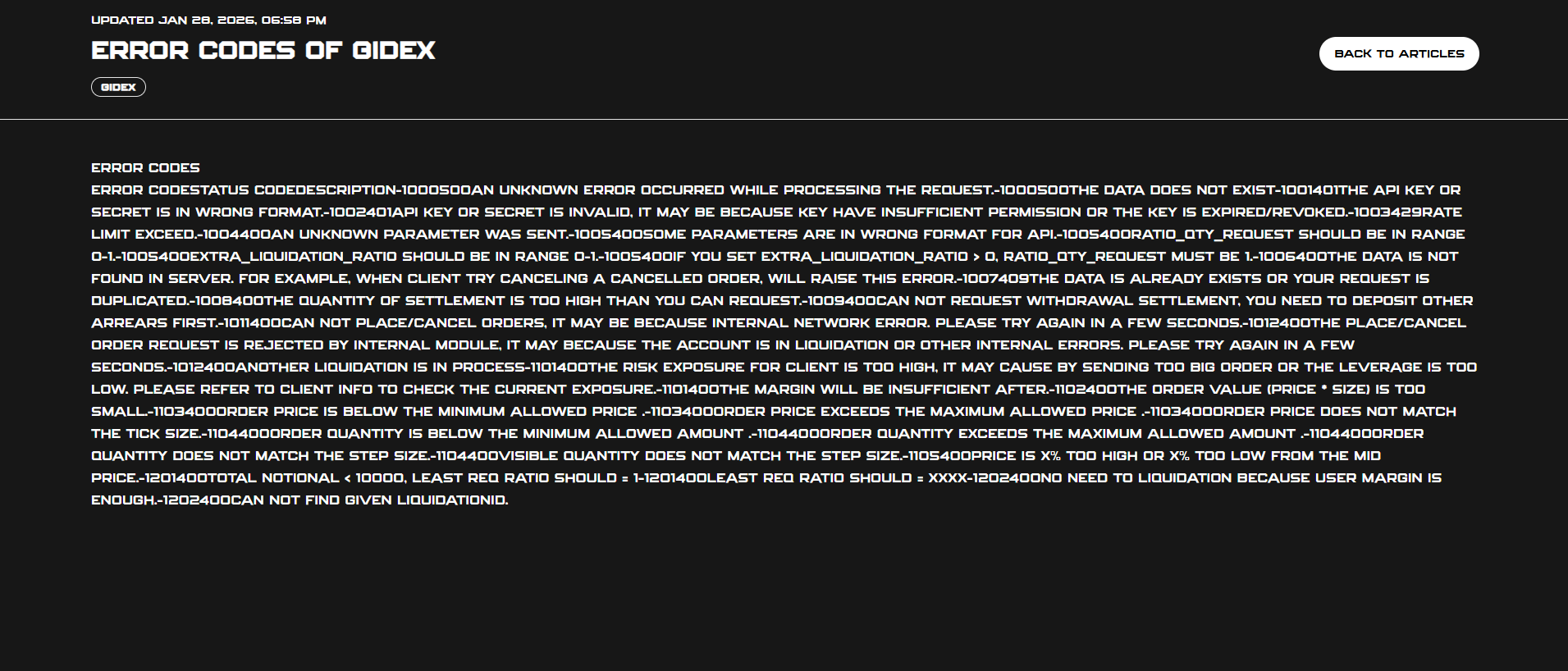
4. Click the Read Article button to read the article for help. The article will open.
Searching for Answers
- Use the search bar
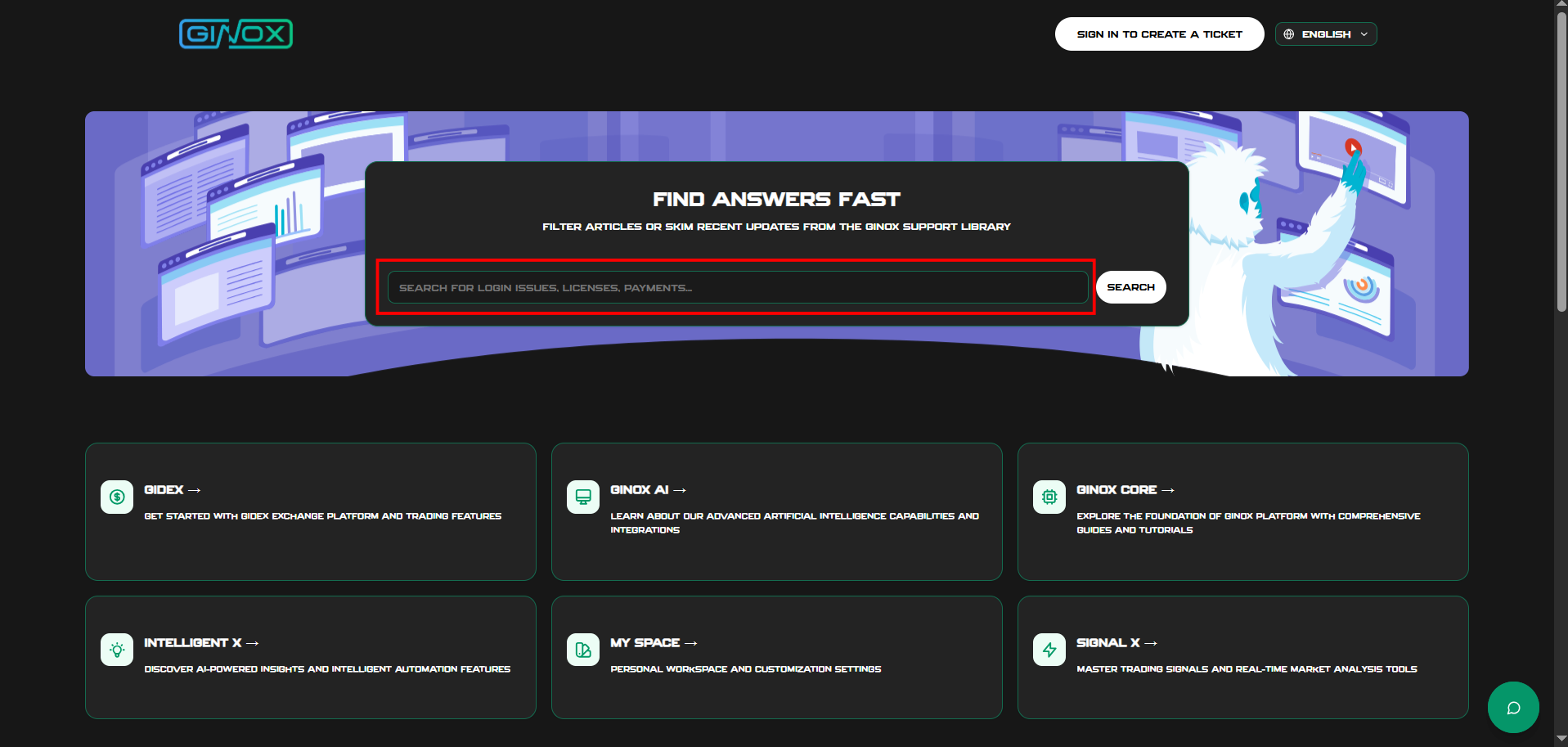
2. Enter keywords related to your question
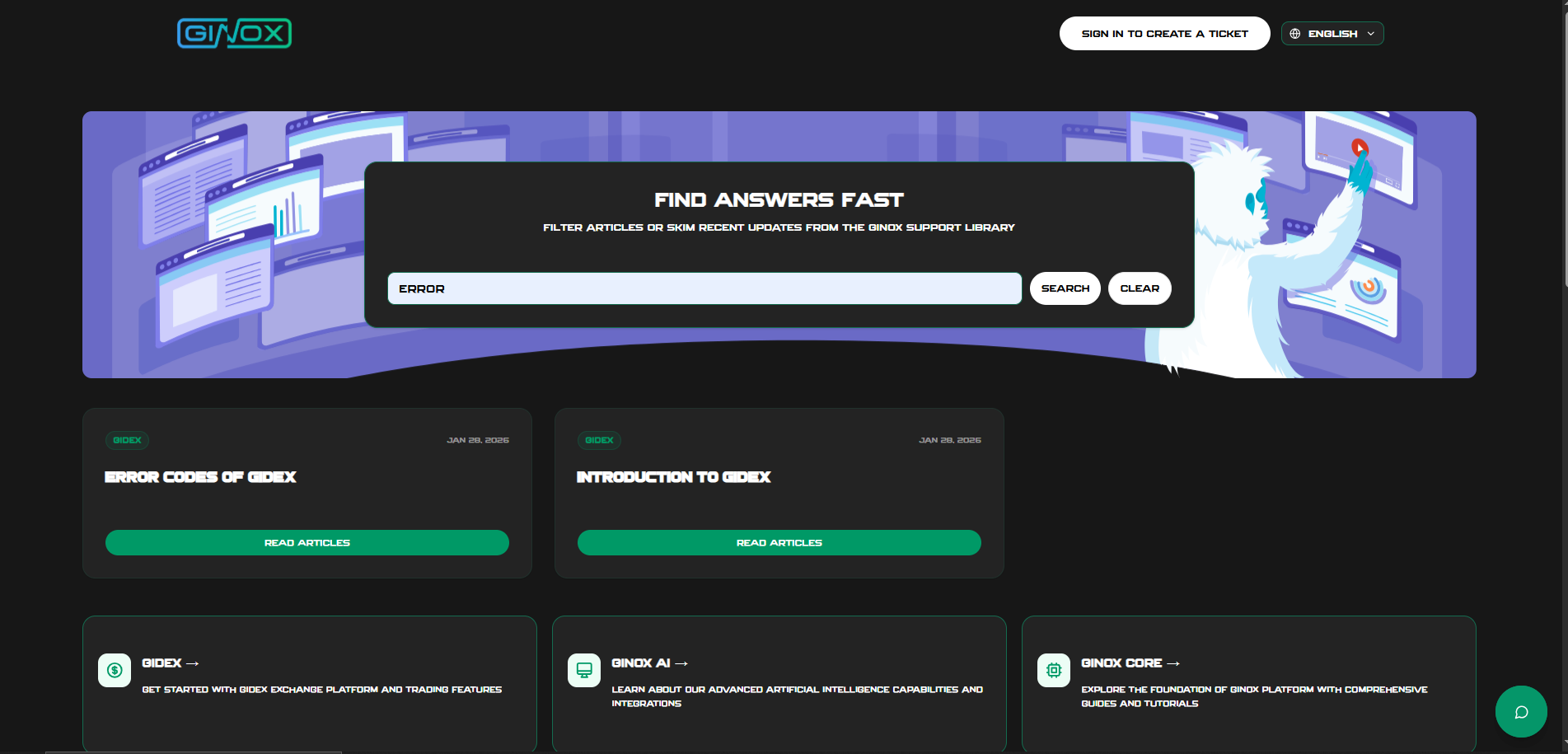
3. View the matching articles that you can read for help.
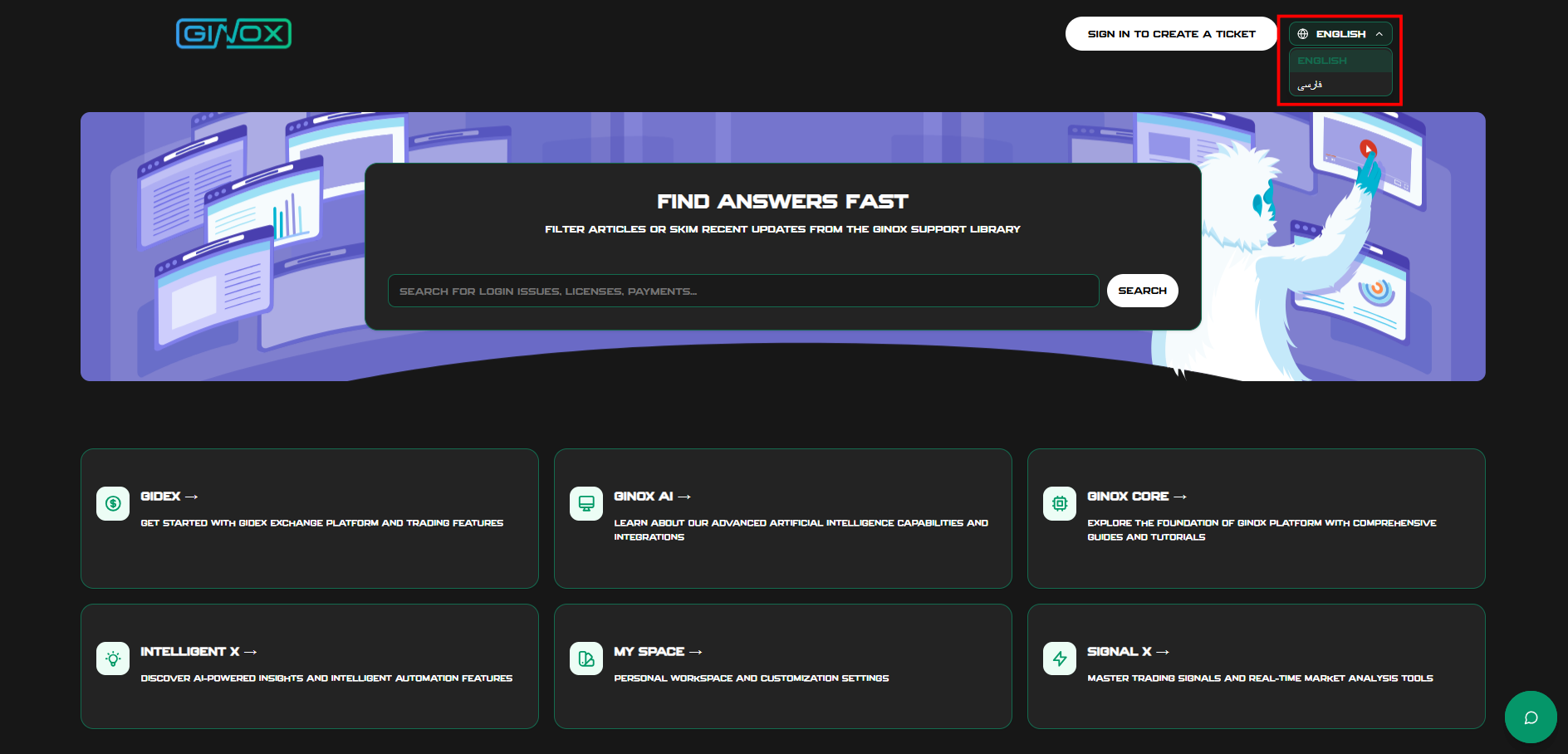
Switching Language
- Toggle between English and Persian
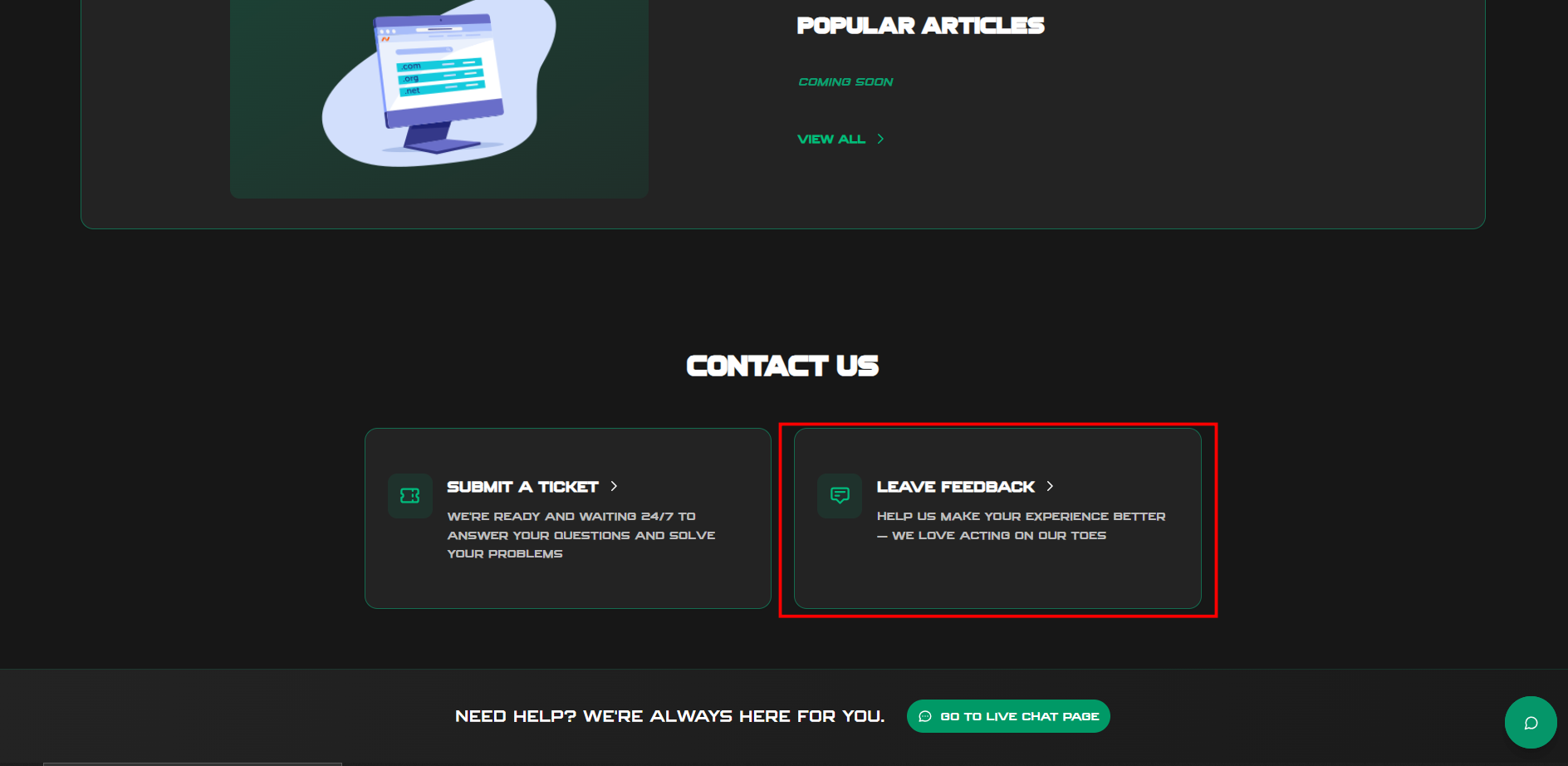
5. Submitting Feedback
Share your thoughts about the platform:
- Go to the Feedback section
2. Rate your overall experience
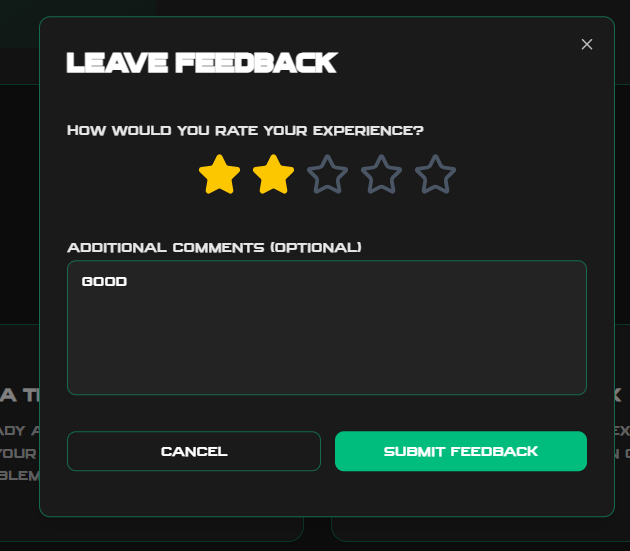
- Add optional comments
- Submit
Your feedback helps us improve!