Product: Gidex
How to Register an Account with Wallet Connect on Gidex
Gidex lets you create an account in seconds using just your crypto wallet — no email, no password. When you connect your wallet and sign a short message, Gidex creates your account and signs you in at the same time. The signature is free, never costs gas, and only proves that you own the wallet.
There are two places you can register with your wallet: from the Connect Wallet button on the trading screen, or from the Sign In / Create Account window. Both lead to the same quick flow. This guide covers both.
Method 1: From the Connect Wallet button
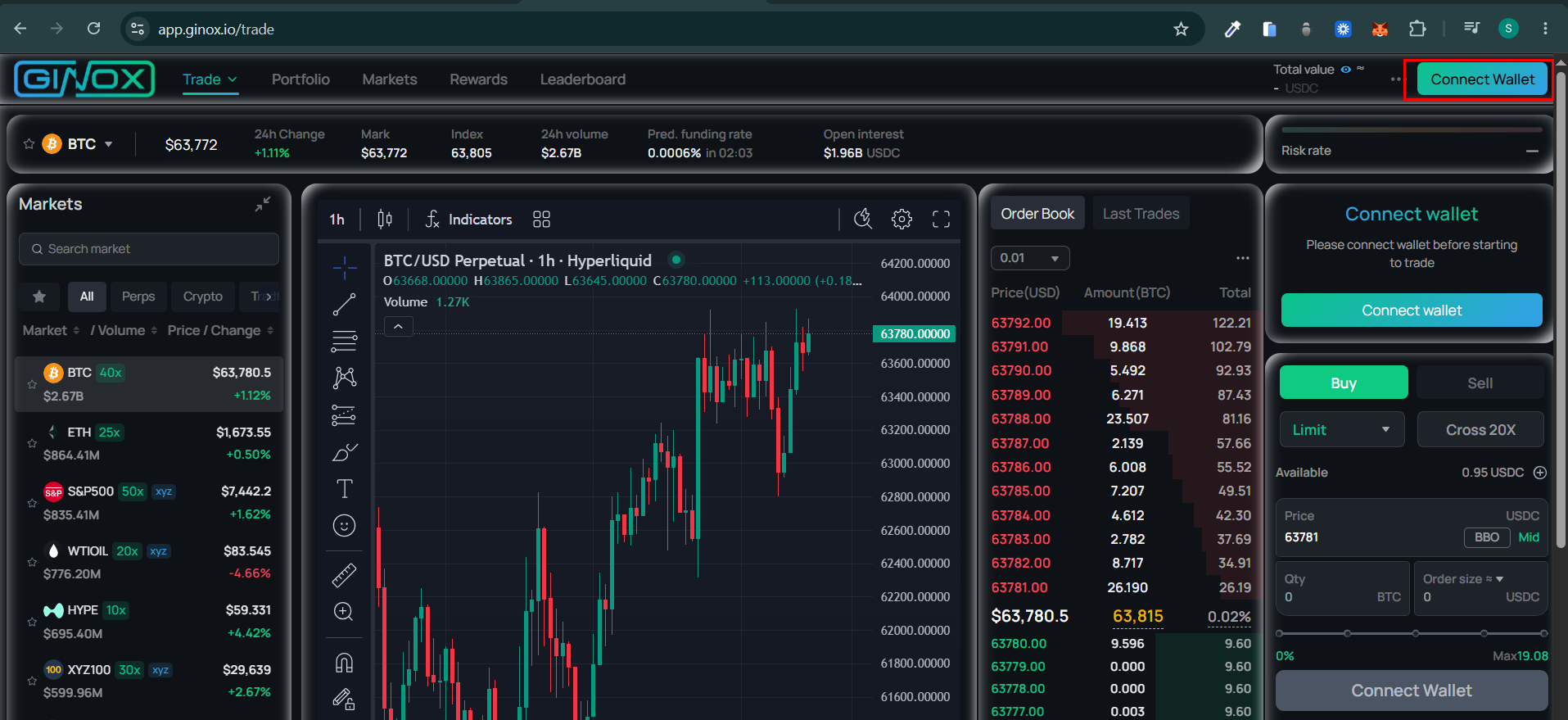
Step 1: Click “Connect Wallet”
Open app.ginox.io. In the top-right corner of the screen you will see a Connect Wallet button (it also appears in the trading panel if you are not signed in). Click it to begin.
Step 2: Choose your wallet
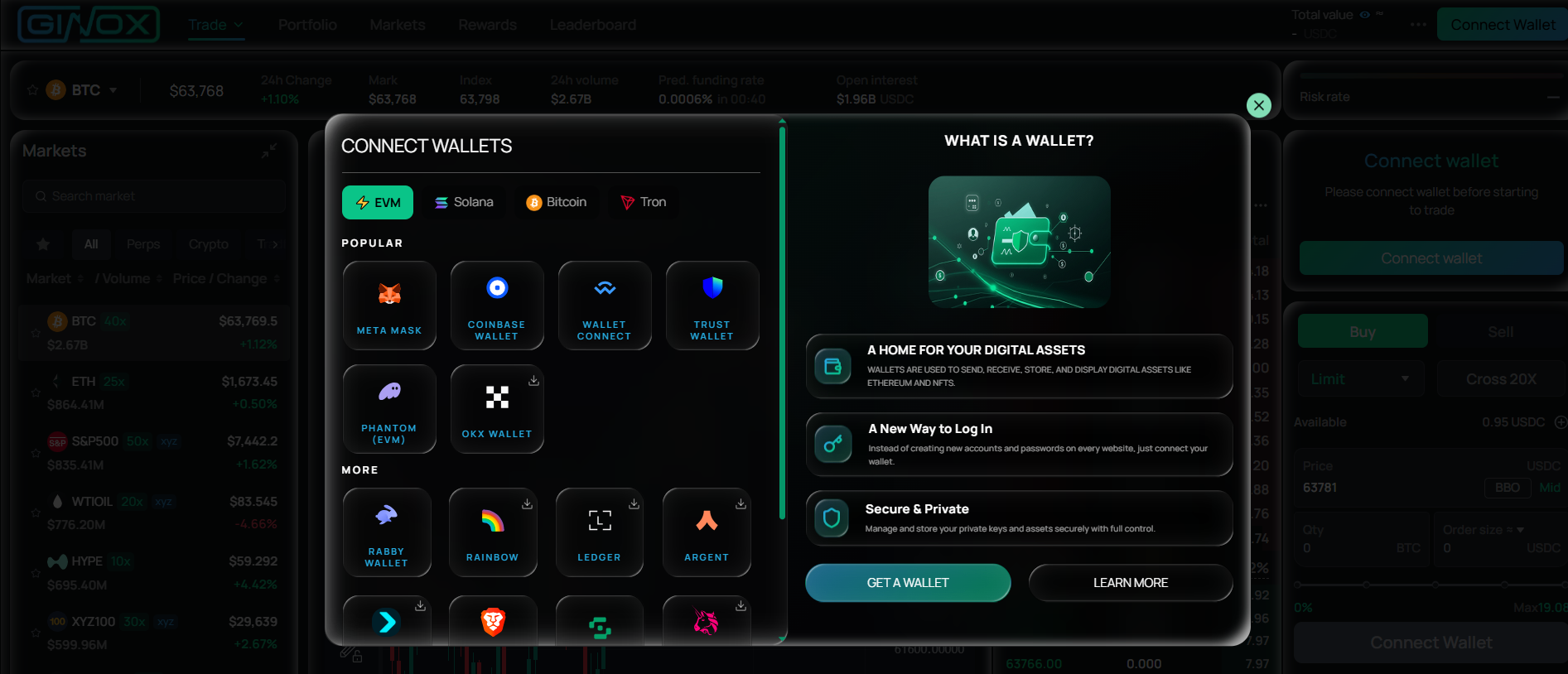
The Connect Wallets window opens. Popular wallets are shown first — MetaMask, Coinbase Wallet, WalletConnect, and Trust Wallet — with more options below (Phantom, OKX, Rabby, Rainbow, Ledger, Brave, Bitget, and others). You can also switch networks using the tabs at the top: EVM, Solana, Bitcoin, and Tron. Click the wallet you use — for this guide we will use MetaMask.
Step 3: Approve the connection
Your wallet app or browser extension opens and asks you to connect to Gidex. Review the request and approve / connect the account you want to use. If your wallet does not pop up automatically, open it manually (for example, click the MetaMask icon in your browser toolbar) to find the pending request.
Step 4: Sign the login message
After connecting, Gidex asks you to sign a message that looks like Login at 2026-06-12T08:15:00.000Z. Click Sign. This signature is free, costs no gas, and never moves your funds or approves any spending — it simply proves you own the wallet.
Step 5: You’re registered and signed in
Gidex creates your account and logs you in immediately. Your wallet address now appears in the top-right corner. That’s it — you can start trading, depositing, and using the rest of the platform. If a wallet you connect already has a Gidex account, this same flow simply signs you back into it.
Method 2: From the Sign In / Create Account window
On some areas of Gidex (such as MySpace) you are greeted by a sign-in window instead of the trading screen. You can register with your wallet from here too.
Step 1: Open the sign-in window
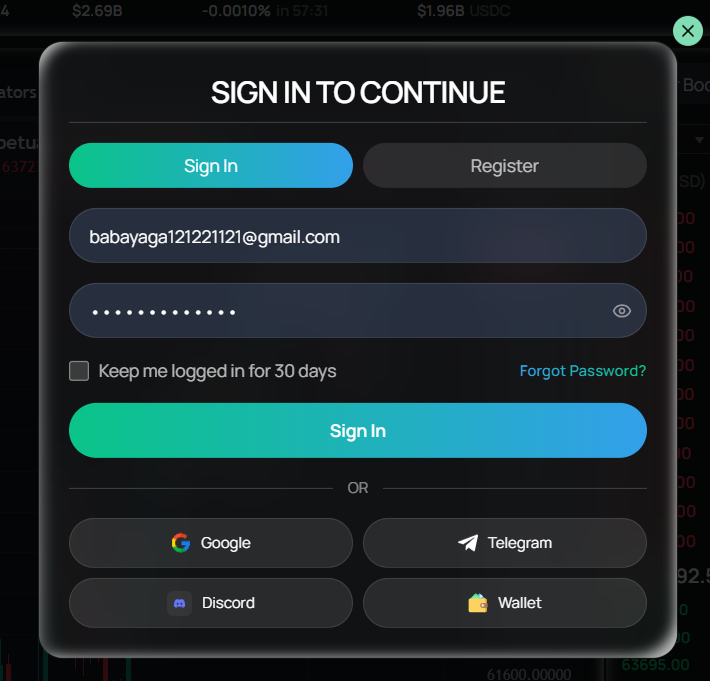
The window has two tabs, Sign In and Register, with email and password fields. Below them, after the “OR” divider, is a row of one-tap options: Google, Telegram, Discord, and Wallet.
Step 2: Click “Wallet”
Click the Wallet option. It works the same way on both the Sign In tab and the Register tab — both open the same wallet flow, so you do not need to fill in the email form first.
Step 3: Pick your wallet, approve, and sign
From here the steps are identical to Method 1: choose your wallet, approve the connection in your wallet app, and sign the Login at … message. Once you sign, your account is created and you are logged in.
Tip: Add an email later (optional)
Because a wallet-only account has no email, Gidex may offer to add an email afterwards. Linking an email is optional, but it secures your account and lets you also sign in with email in the future. You can do this whenever the prompt appears, or skip it for now.
Frequently Asked Questions
Do I need an email or password to register? No. Connecting your wallet creates a passwordless account. You can optionally add an email later for extra security and email sign-in.
Is signing the message safe? Does it cost gas? Yes, it is safe, and no, it does not cost gas. Signing is an off-chain action that only proves you control the wallet. It never moves your funds and never grants permission to spend your tokens.
Which wallets are supported? MetaMask, Coinbase Wallet, Trust Wallet, WalletConnect (for mobile and many other wallets), Phantom, OKX, Rabby, Rainbow, Ledger, Brave, Bitget and more — across EVM, Solana, Bitcoin, and Tron networks.
I already have a Gidex account with an email. Can I add my wallet? Yes. Sign in to your existing account first, then connect your wallet — it links to your current account instead of creating a new one.
I see “wallet already linked to another account”. What does that mean? Each wallet can belong to only one Gidex account. If you see this message, that wallet is already registered to a different account. Sign in to the original account, or connect a different wallet.
My account already has a different wallet linked. If you connect a new wallet while another one is already linked, Gidex shows a prompt that lets you disconnect the old wallet and link the new one. Follow the prompt to switch.
Nothing happened after I selected my wallet. Open your wallet extension or app manually to find the pending Connect or Sign request and approve it. On mobile, make sure you allow Gidex to open your wallet app.