Product: Gidex
How to Sign In by Email on Ginox
If you created your Ginox account with an email and password, this is how you sign back in. Ginox also supports an optional extra layer of security — two-factor authentication (2FA) — and gives you a quick way to reset your password if you ever forget it. This guide covers all three.
Step 1: Open the Sign In window
Go to app.ginox.io. If you are not signed in, the Sign In window appears automatically (you can also open it from the Sign In / Connect option in the app). Make sure the Sign In tab is selected — not Register.
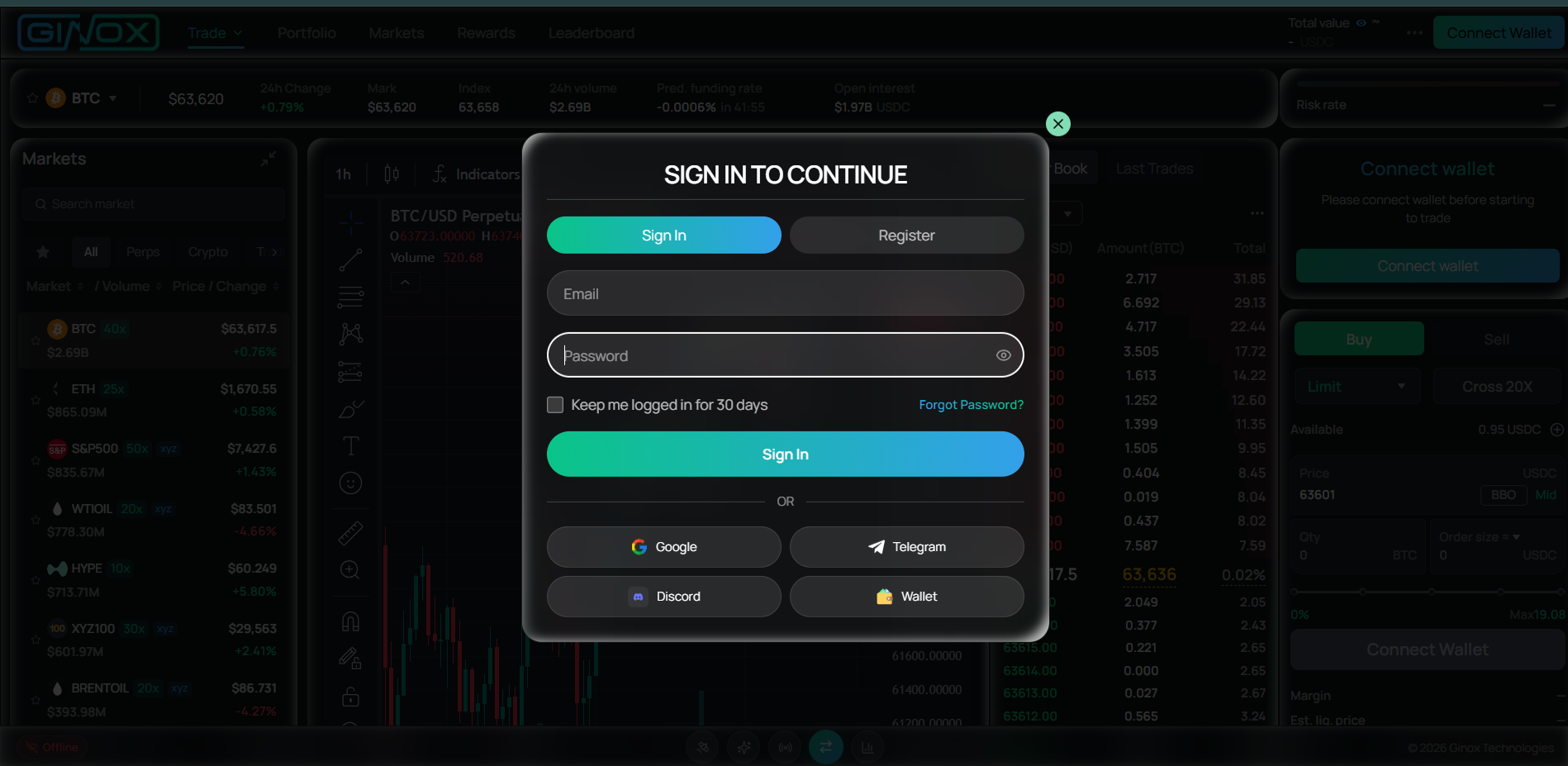
Step 2: Enter your email and password
Type the email and password you used when you created your account. You can click the eye icon inside the password field to reveal what you typed and double-check it.
Step 3: Choose how long to stay signed in (optional)
Tick “Keep me logged in for 30 days” if this is your own device and you don’t want to sign in every time. Leave it unticked on shared or public computers for safety.
Step 4: Click Sign In
Press the Sign In button. If your email and password are correct and you do not use 2FA, you are taken straight to your Ginox dashboard.
Step 5: Enter your 2FA code (if you enabled it)
If you turned on two-factor authentication, Ginox asks for a 6-digit verification code before letting you in. Enter the current code from your authenticator app (such as Google Authenticator), or the code sent to your email if you use email-based 2FA, then confirm.
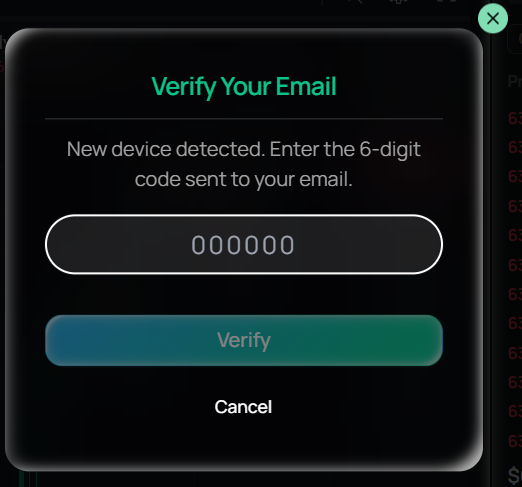
Step 6: You’re signed in
Once your details (and code, if required) are accepted, you land in your Ginox dashboard and can start using the platform.
Forgot your password?
If you can’t remember your password, you can reset it from the same window:
- On the Sign In window, click “Forgot Password?”.
- In the “Reset Your Password” window, enter your account email and click Send Reset Link.
- Check your inbox and follow the email’s instructions to set a new password, then return and sign in.
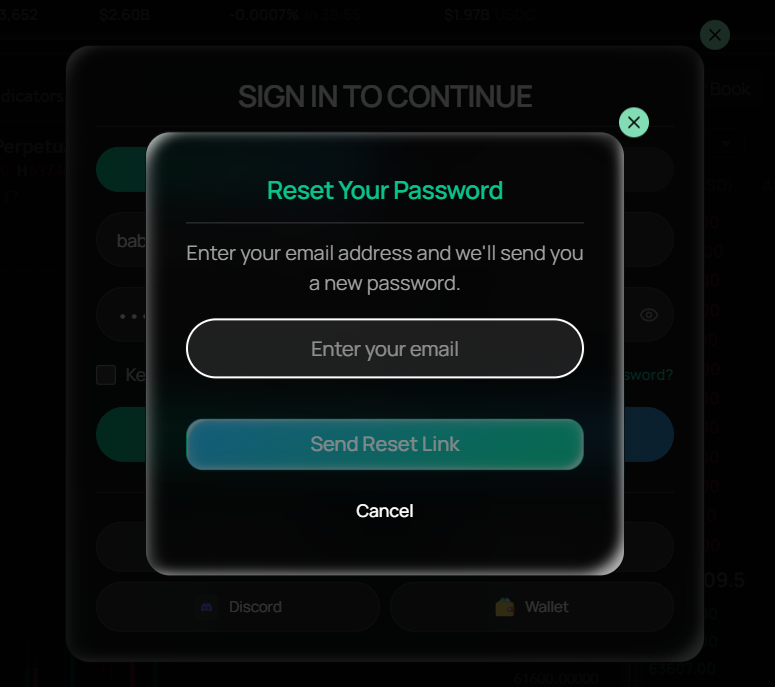
Other ways to sign in
Email is only one option. On the same window you can also sign in with Google, Telegram, Discord, or your crypto wallet. To sign in (or register) with a wallet, see the “How to Register an Account with Wallet Connect on Gidex” guide.
Frequently Asked Questions
I wasn’t asked for a 2FA code. Is that normal? Yes. The 2FA step only appears if you have enabled two-factor authentication on your account. If you haven’t set it up, you sign in with just your email and password.
My email or password isn’t working. Double-check for typos and that Caps Lock is off. If you still can’t get in, use Forgot Password? to reset it.
Where do I get my 2FA code? From the authenticator app you set up (for example Google Authenticator), or from your email if you chose email-based 2FA. Authenticator codes refresh every 30 seconds, so use the current one.
The site keeps asking me to sign in again. Tick “Keep me logged in for 30 days” when you sign in, and make sure your browser is not blocking cookies or clearing site data for app.ginox.io.
Can I sign in with Google or my wallet instead? Yes — use the Google, Telegram, Discord, or Wallet option on the same window.
How do I reset my password? Click Forgot Password?, enter your email, send the reset request, and follow the instructions in the email you receive.